


Encountering error codes in Windows is never fun. Especially when it is a long, scary string of characters that appears while attempting to access data.
Error 0x80070057 signals that Windows cannot execute certain instructions for the current task. It often occurs when your PC lacks sufficient storage space or system resources.
Although errors like 0x80070057 will not cause data loss, they can reveal underlying problems that could compromise your files.
The experts at Secure Data Recovery explain error code 0x80070057 and provide a step-by-step guide for quickly resolving it.
What Is Error 0x80070057?
Error 0x80070057 is a generic Windows error code that indicates an invalid parameter or a related issue.
The error can appear in several contexts within Windows. However, it always signifies a problem occurred between the operating system and the storage device during a task. In many cases, the error prevents the desktop or laptop from accessing stored data.
Here are the most common causes of error 0x80070057:
- Failed Windows Update: The system cannot communicate with Microsoft's servers or validate the database files.
- Failed Windows Backup or System Restore: Microsoft’s services could detect an invalid file path or target drive and end the process.
- Insufficient Storage Capacity: Not having enough free space on the drive can trigger errors because the system cannot complete the task.
- Improper Formatting: Writing or reading data in a partition using a file system incompatible with Windows can cause issues.
- Corrupted File System: Damaged data could return errors if structures are missing or unreadable.
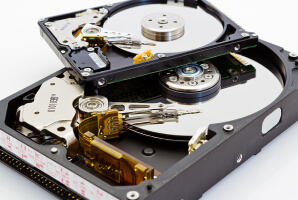
- Failing Hardware: Bad sectors, faulty memory, or a defective controller might produce an invalid argument or value.
- Third-Party Software: Antivirus tools and other programs may alter system parameters and cause unexpected errors.
- Misconfigured Windows Registry: Broken entries, incorrect keys, or mismatched values can cause Microsoft services to stop.
Knowing the most frequent triggers of error code 0x80070057 can help diagnose and troubleshoot the specific issue.
Fixing Error 0x80070057: Step-by-Step Guide
Luckily, it is possible to address error 0x80070057 with a methodical approach.
Verify your internet connection is stable and your computer’s calendar is set to the correct date and time before beginning. These regional and format settings are unlikely to cause error code 0x80070057. Still, they are easy items to cross off a checklist.
Follow these simple steps to fix error 0x80070057 on a Windows PC:
Step 1: Free Up Disk Space
Often, the simplest solution for the error is to free up disk space on the system. Windows needs storage space to execute tasks like installing software or saving files. The error code could indicate that there isn’t enough space to complete the requested process.
To check the PC’s disk space:
- Click the Start icon on the Windows taskbar.
- Click the Settings icon in the menu.
- Select System in the left sidebar.
- Select Storage.
Determine if your storage capacity is the blocker. You can take cleanup recommendations from Windows and remove installed apps or local files to create more space if needed.
To perform disk cleanup:
- Type Disk Cleanup in the search box on the Windows taskbar.
- Choose the Disk Cleanup match in the menu.
- Select the desired drive to clean up.
- Click OK to run the tool.
- Select file categories to delete from the drive.
- Click OK to clean the disk.
Note: Disk Cleanup could delete important data stored on the device. Always check the selected data before cleaning the system.
Step 2: Scan for Malware
Malicious software can infect your PC through deceptive downloads, suspicious ads, or phishing emails. It can cause error 0x80070057 by damaging critical system files, disrupting Windows services, or editing the registry.
A full scan with a trusted antivirus program using updated definitions could detect and remove malware from Windows.
However, sometimes an infected system is so compromised or sluggish that normal scans are ineffective. It is possible to reboot in Safe Mode to scan for malware in those cases. Safe Mode is a stripped-down version of Windows that uses fewer drivers and system files.
To boot into Safe Mode and run a scan:
While holding the Shift key, open the Start menu, click the Power icon, and choose the Restart option.
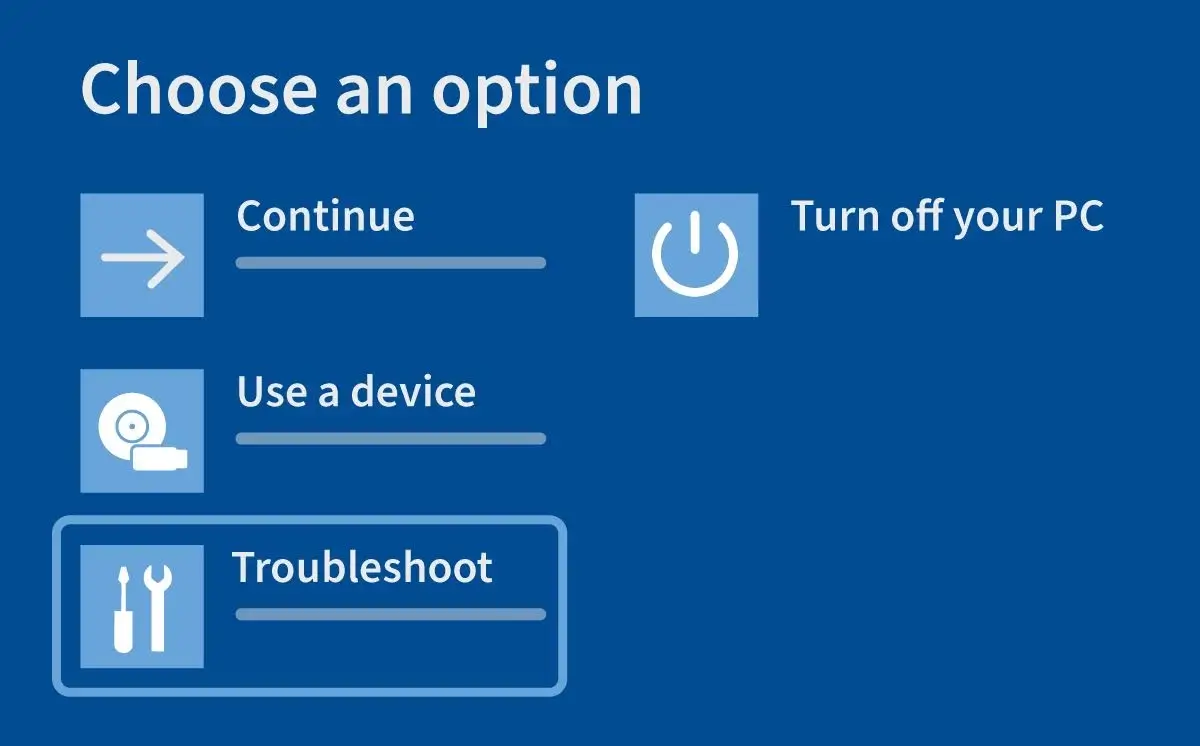
Choose Troubleshoot > Advanced Options > Startup Settings > Restart.
Press 4 (or F4) to restart the PC in Safe Mode for an offline scan.
Press 5 (or F5) to restart the PC in Safe Mode with Networking for a full scan.
Note: Keep a network session as short as possible. Reboot normally and attempt another scan.
Step 3: Run Windows Update Troubleshooter
If the error code appears while downloading or installing a Windows Update, a built-in tool might help.
To run the Windows Update Troubleshooter:
Click the Start icon on the Windows taskbar.
Click the Settings icon in the menu.
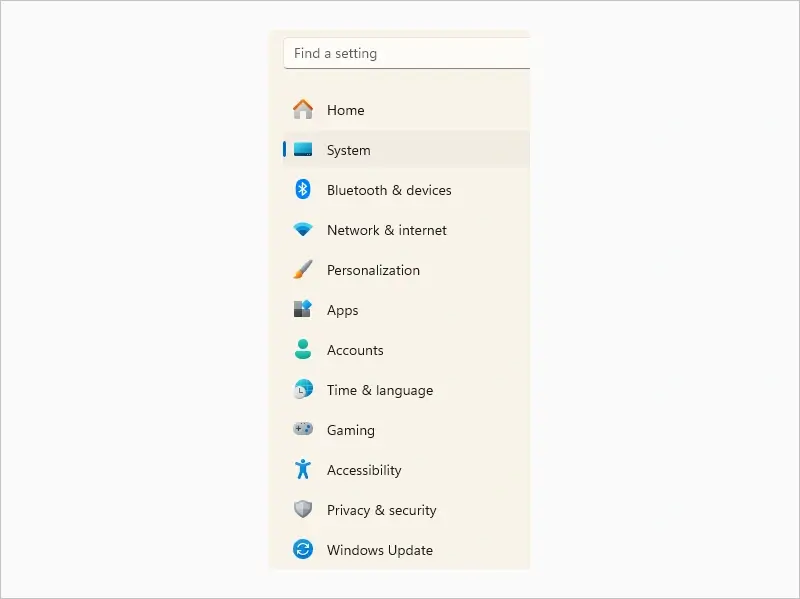
Choose System in the left sidebar.
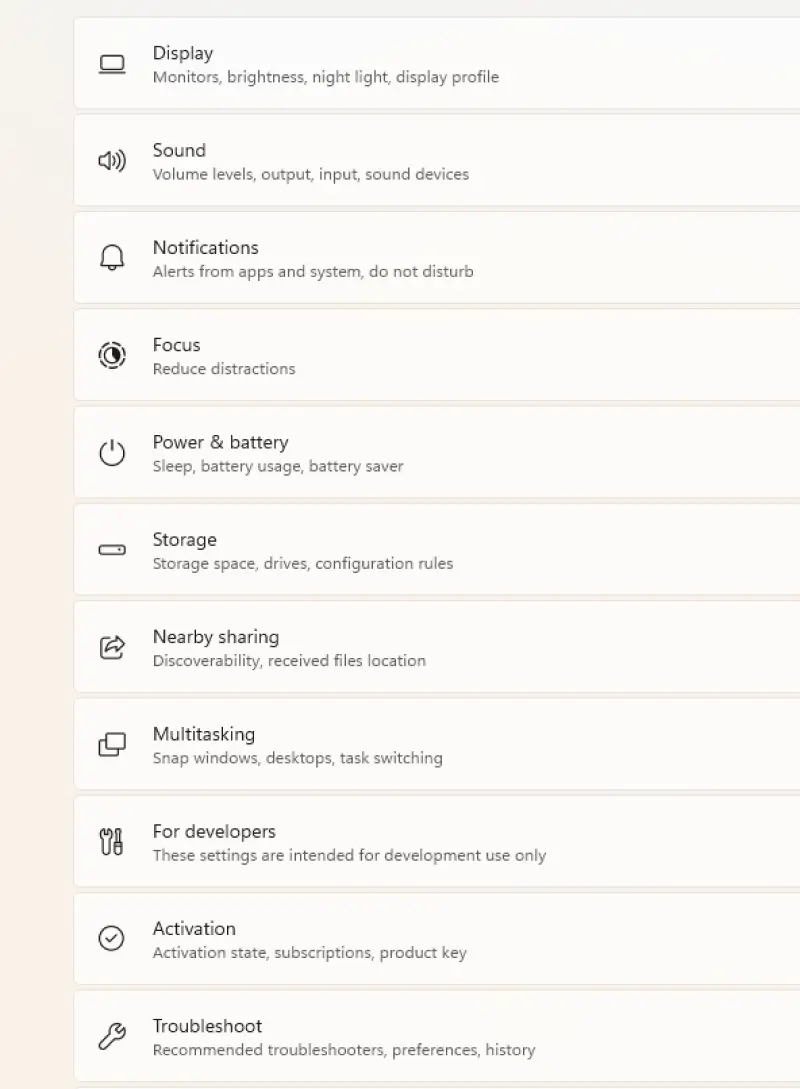
Scroll down and select Troubleshooting.
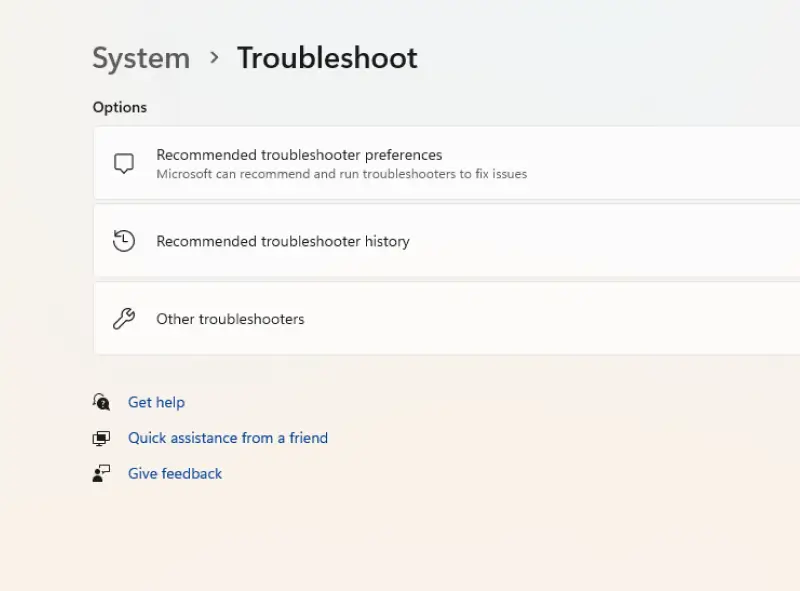
Select Other Troubleshooters.
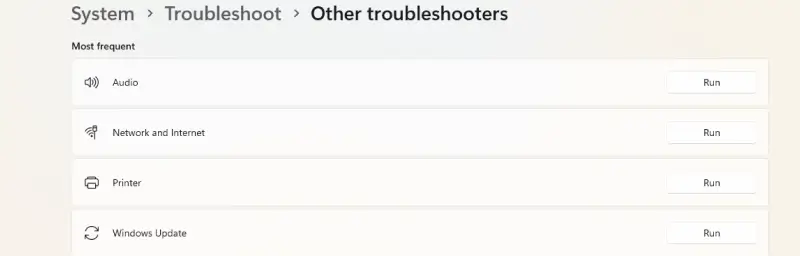
Click Run for the Windows Update Troubleshooter.
Restart your computer when the troubleshooter completes to see if Windows Update works.
Restart your computer when the troubleshooter completes to see if Windows Update works. -Step 4: Check for Windows Update
If nothing prevents communication with Microsoft services, check Windows Update. These patches can fix glitches that disrupt normal operations and improve system performance. Most versions of Windows 11 and Windows 10 update automatically. However, a manual update might be needed at times to address security and stability.
To check for a Windows Update on Windows 11 and 10:
- Click the Start icon on the Windows taskbar.
- Select Settings from the menu.
- Choose Windows Update.
- Click Check for Updates.
To check for a Windows Update on a PC with Windows 7:
- Click the Start menu on the Windows taskbar.
- Choose All Programs.
- Select Windows Update from the list.
See if the update resolves a software conflict that caused issues with storage space or system resources. Otherwise, continue to the next step.
Step 5: Try CHKDSK
CHKDSK is a Windows tool that checks disks for logical issues that could trigger an error code such as 0x80070057.
Note: Using CHKDSK could lead to data loss, so it is best to have a backup beforehand. CHKDSK often tries to relocate data from a bad sector to a more reliable one. Once moved, CHKDSK marks the bad sector as unavailable in the file system. As a result, the process can leave bits of data behind in inaccessible sectors. Assess the value of stored data before running CHKDSK.
To run CHKDSK:
Type CMD in the search box on the Windows taskbar.
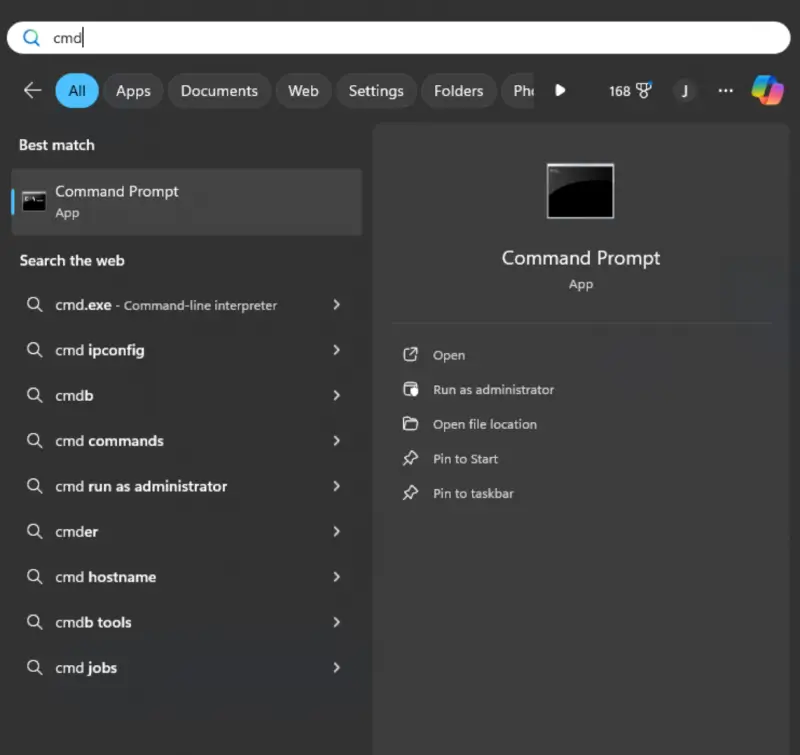
Right-click Command Prompt in the matches and select Run as administrator.
chkdsk c: /f
Type chkdsk c: /f -chkdsk c: /f in the command-line interface. (Note: In most cases, c: is the system drive. You can change the drive letter in the command as desired.)
Press Enter.
Wait for the scan to finish. It can take some time to verify the file system structure and the sectors on the physical disk.
Step 6: Use SFC
If the hard drive appears fine but still shows error code 0x80070057, consider running SFC (System File Checker). SFC scans for corrupted or missing system files by comparing your PC to a cached copy in the Windows Component Store. Therefore, the tool may repair file corruption that prevents certain tasks from completing.
To run an SFC scan in Windows:
Wait for SFC to scan the computer for corrupted or missing system files. Repairing corrupt files or replacing missing data could fix the error.
Step 7: Repair Outlook Profile
Error 0x80070057 sometimes occurs because Outlook cannot communicate with the system to access data. Outlook profiles can become corrupted due to improper shutdowns, hardware failure, software issues, or malware infections.
To repair an Outlook profile:
Open Microsoft Outlook.
Select File in the top-left corner of the program.
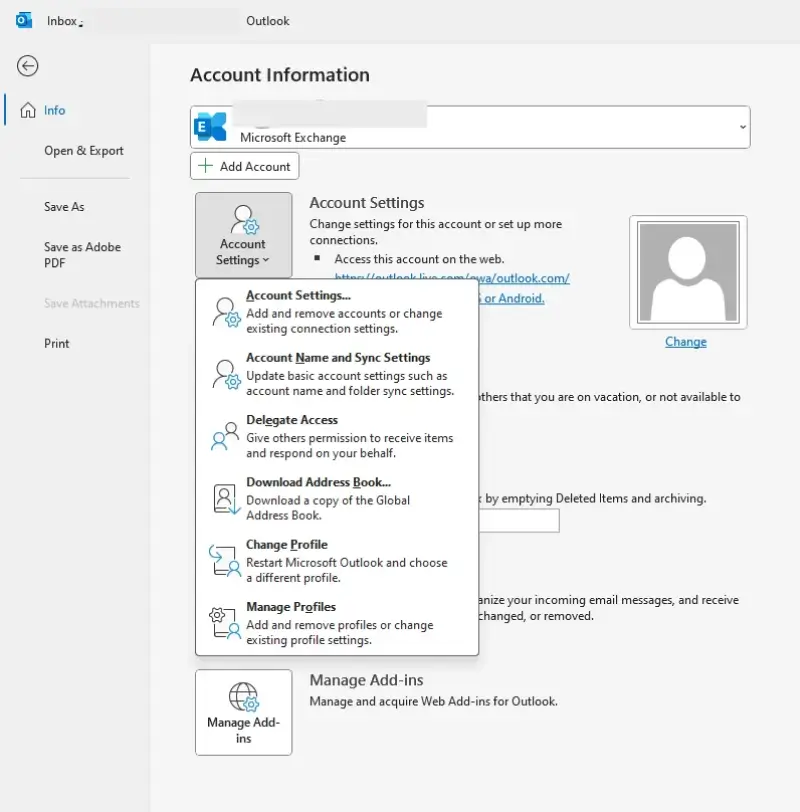
Choose Account Settings from the drop-down menu.
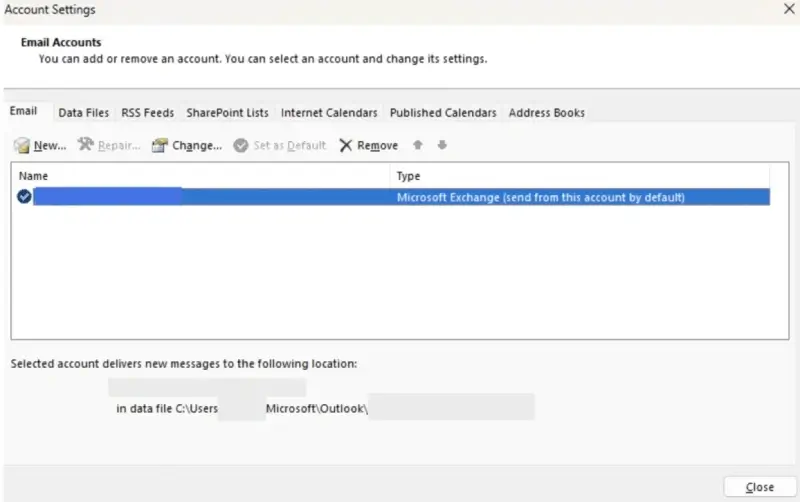
Select your profile in the Email tab and click the Repair icon.
Follow the on-screen prompts to complete the repair process.
Restart Outlook after repairs to test the profile.
Restart Outlook after repairs to test the profile. -Step 8: Perform a System Restore
More robust solutions are needed if error code 0x80070057 persists. A system restore rolls back core files and settings to a recent point in the past without wiping user data. The step intends to restore Windows to a functional state. It requires an existing restore point.
You should still make copies of all important data before restoring the system.
You should still make copies of all important data before restoring the system. -To perform a system restore:
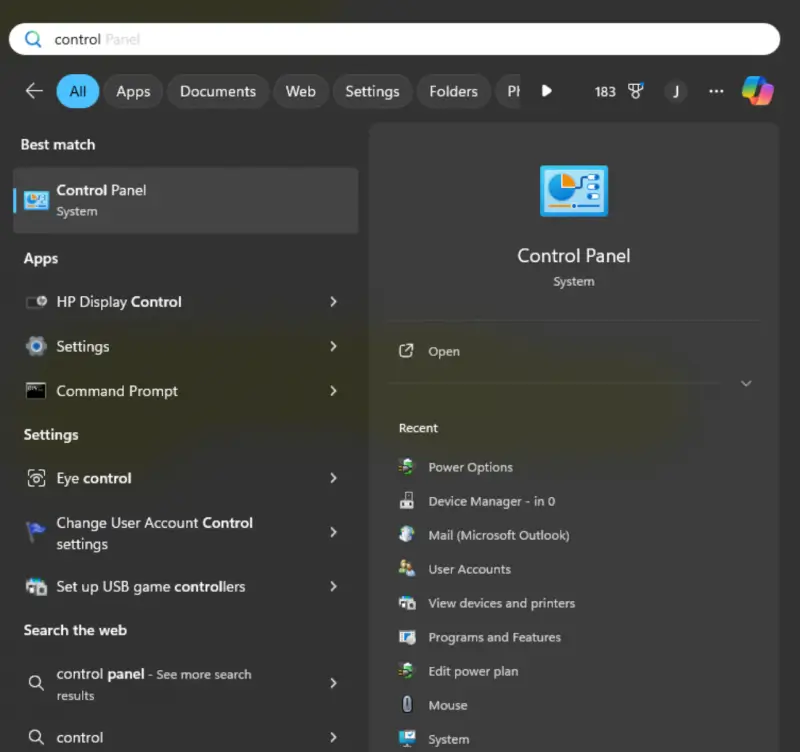
Type Control Panel in the search box on the Windows taskbar.
Select Recovery.
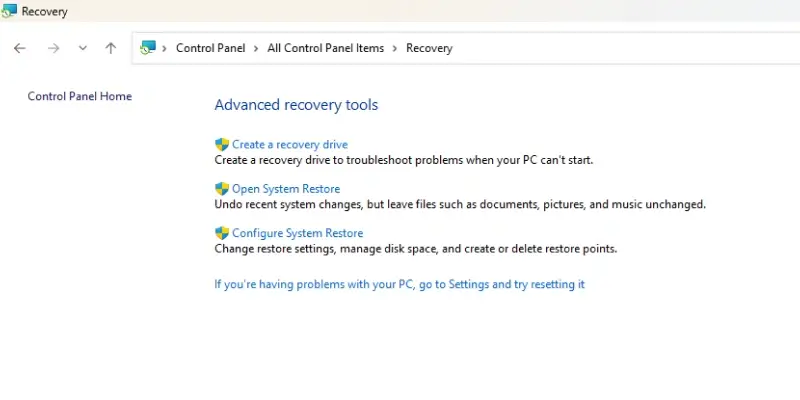
Choose Open System Restore.
Choose a restore point that predates error 0x80070057.
Allow the system to restore to the chosen point and see if the code no longer appears.
Allow the system to restore to the chosen point and see if the code no longer appears. -Step 9: Reset This PC
If System Restore fails, then Reset This PC is another option. Resetting the system reinstalls a clean copy of Windows while attempting to preserve local data. This approach targets widespread file corruption within the system.
Note: Like restoring the system, we strongly recommend having a valid backup before resetting the PC.
To reset the PC:
- Click the Start icon on the Windows taskbar.
- Click the Settings icon in the menu.
- Choose System in the left sidebar.
- Select Recovery.
- Click Reset This PC.
- Choose Keep My Files to retain user data.
- Follow the on-screen instructions.
Once done, the PC should revert to its original settings.
Once done, the PC should revert to its original settings. -Step 10: Reformat Hard Drive
As a last resort, a reformat can rebuild the drive’s file system. Reformatting removes data from the storage device, leaving plenty of space to fulfill tasks. Formatting can resolve much deeper problems with the disk or partition.
Note: A quick format clears saved metadata and creates a new file system for the hard drive. A full format overwrites the entire disk with random patterns of data. You will not be able to access previously stored data. Do not proceed without a working backup if the hard drive contains critical files.
To format your hard drive on Windows:
- Press the Windows key and X simultaneously.
- Choose Disk Management from the menu.
- Right-click the desired volume.
- Select Right-click the desired volume. -Format… from the menu.
- Choose Right-click the desired volume. -NTFS as the file system for the hard drive. (Note: NTFS, as the native file system for Windows, is ideal for internal drives.)
- Leave the allocation unit size to the default value.
- Click OK to reformat.
You may need to right-click the formatted device and assign a drive letter in Disk Management afterward.
If Windows continues to display error code 0x80070057, then hard drive failure is the most likely culprit.
Tips To Avoid Error Code 0x80070057
The following tips can help you avoid error 0x80070057 in the future:
- Manage storage space and monitor hard drive health.
- Address
- Keep Windows, installed software, and drivers up to date.
- Uninstall unused apps instead of deleting their files.
- Avoid edits to the Windows Registry.
- Use a reputable antivirus tool to protect against cyber threats.
Contact the Experts To Repair System Errors
Sometimes, it is harder to pinpoint the problem. These difficulties often suggest damaged or defective hardware. Yet, SSD and hard drive recovery is still possible in many cases involving error code 0x80070057.
Our engineers provide data recovery services across all storage devices and file systems. We maintain a 96% success rate and offer free quotes with a data recovery services -No Data, No Recovery Fee guarantee. You either get your data back, or pay nothing.
Call 800-388-1266, request help, or find a location to begin retrieving data from a drive with severe file system errors.

Yevgeniy Reznik

Yevgeniy Reznik is Laboratory Operations Manager at Secure Data Recovery Services in Cleveland, Ohio, and has more than a decade of experience as a data recovery engineer. He graduated from Cleveland State University with a degree in computer science and spent 15 years as an IT entrepreneur and small business owner before joining the company.







.png)
