


There are a lot of reasons you may want to move photos from your Android phone to your computer. Maybe you want to be able to access and edit them on your computer, you’re looking to back up your family photos, or perhaps you just need to free up a little storage space on your phone.
Regardless of why (or how) you transfer them, there’s a golden rule that’s always worth following: do not delete the originals from your phone until you’re sure that the copied photos open correctly on your computer. Transfers can fail halfway through, skip some files, or create incomplete or broken copies without necessarily letting you know right away.
Windows users have a few built-in or Microsoft-supported options, such as USB transfer, the Photos app, Phone Link, and Quick Share. If you’re a Mac user, you may need to rely on Google Photos, cloud storage, or a trusted Android file transfer tool.
The best approach is the simplest one: transfer first, verify second, and only then consider deleting the data off of your phone.
In this guide, we’ll take a closer look at how to go about transferring, how it all works, and how to be best prepared in case a file transfer goes south. Let’s dive into it.
Before You Transfer: Prepare Your Android Phone and Computer
A little preparation can go a long way in preventing transfer errors or missing photos. Before you connect your Android phone, make sure it has enough charge to stay powered throughout the transfer. Then, unlock it so your computer can access its storage.
If you’re using a USB cable, make sure it’s one that supports data transfer. Some cables are solely for charging and won’t work to transfer your files.
Once you’ve connected your phone, check the USB notification and make sure you select File Transfer or Photo Transfer if prompted.
It’s also a good idea to decide beforehand where you want your transferred photos to go. For instance, create a clearly labeled folder such as “Android Photos Backup - September.” This will make it easier to confirm what has been successfully copied once you’re done.
Finally, check whether your photos are stored in your phone’s internal storage, on an SD card, or only in a cloud service like Google Photos or Dropbox. We’ll detail some of the more common image storage locations below.
And most importantly, like we mentioned earlier, don’t delete the originals until you’re sure the transfer has been successful.
Where Android Photos Are Usually Stored
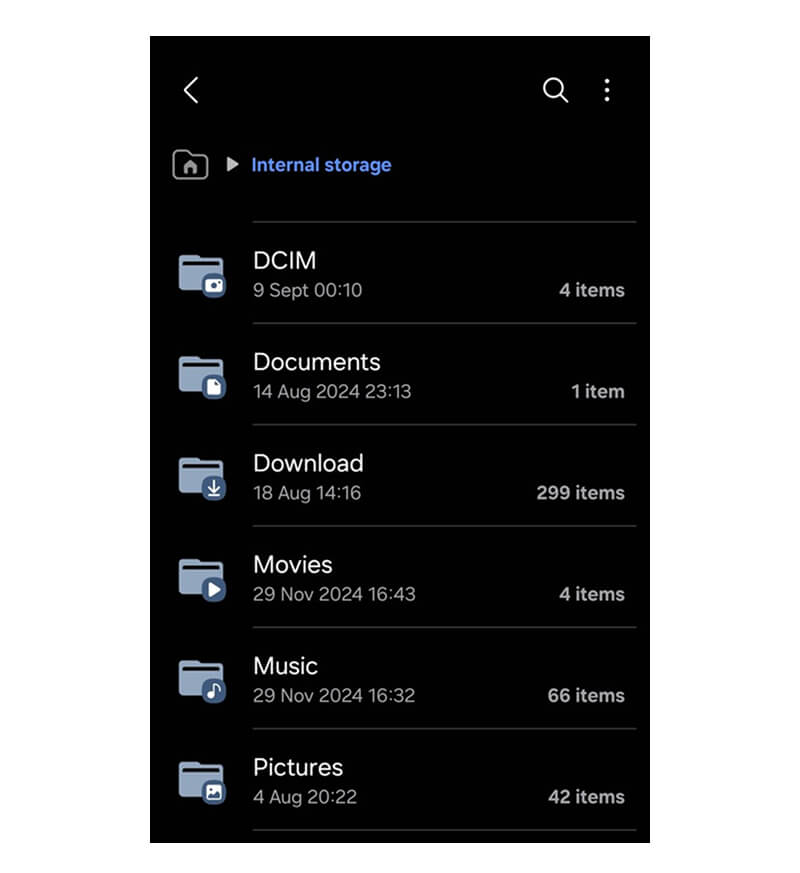
If you’re browsing your Android phone’s storage, your photos could be in several different locations depending on how they were created or saved. Here are some of the most common locations:
- DCIM > Camera for photos taken with your phone’s camera
- Pictures for saved or edited images
- DCIM > Screenshots for screen captures
- Download for images downloaded from the web or apps
- App-specific folders for services such as WhatsApp or other messaging and editing apps
- SD card storage, if your phone supports removable storage
How to Transfer Photos from Android to Windows
With Windows, you have several options available to transfer your photos from an Android phone, whether you want to back up your entire collection or just a handful of recent images.
Use a USB Cable
For bigger transfers, a USB cable is usually the most straightforward way to get your files onto your PC. To do this, follow these steps:
- Connect your Android phone to your PC and unlock it.
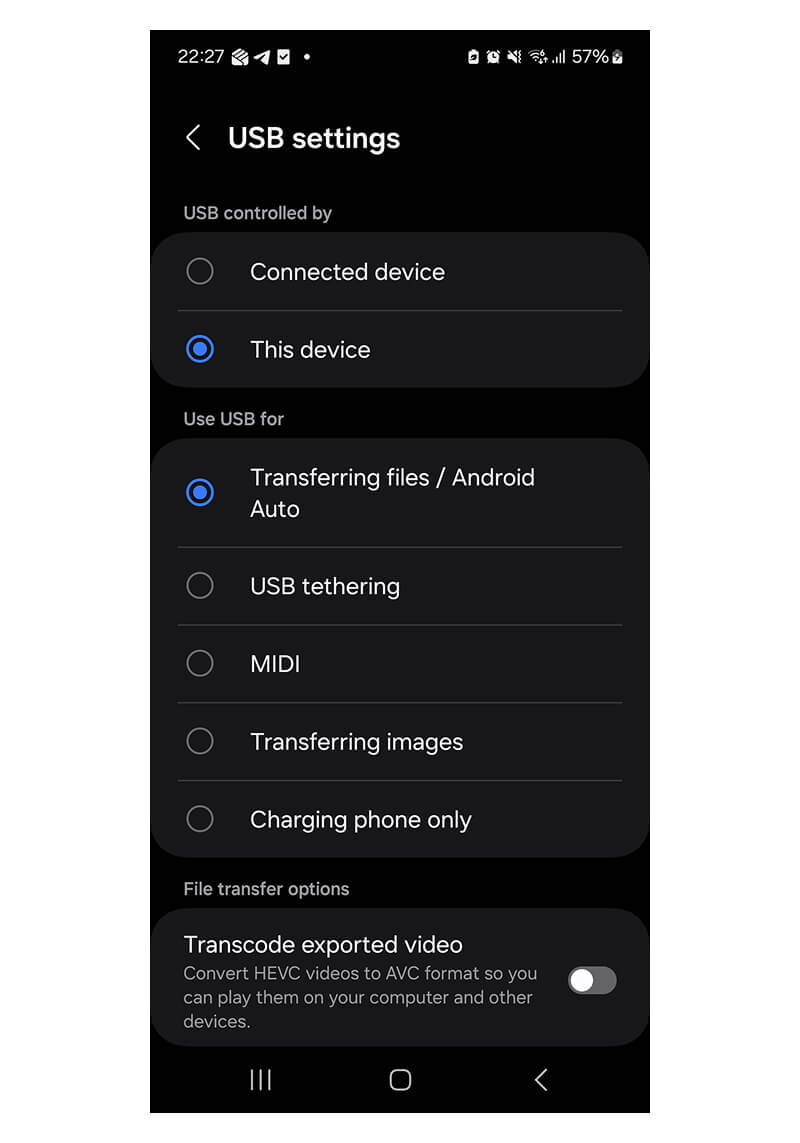
- Tap the USB notification on your phone and select File Transfer. You may also receive an option for Photo Transfer, which can be useful if you only need to transfer images.
- Open File Explorer on Windows and select your Android device.
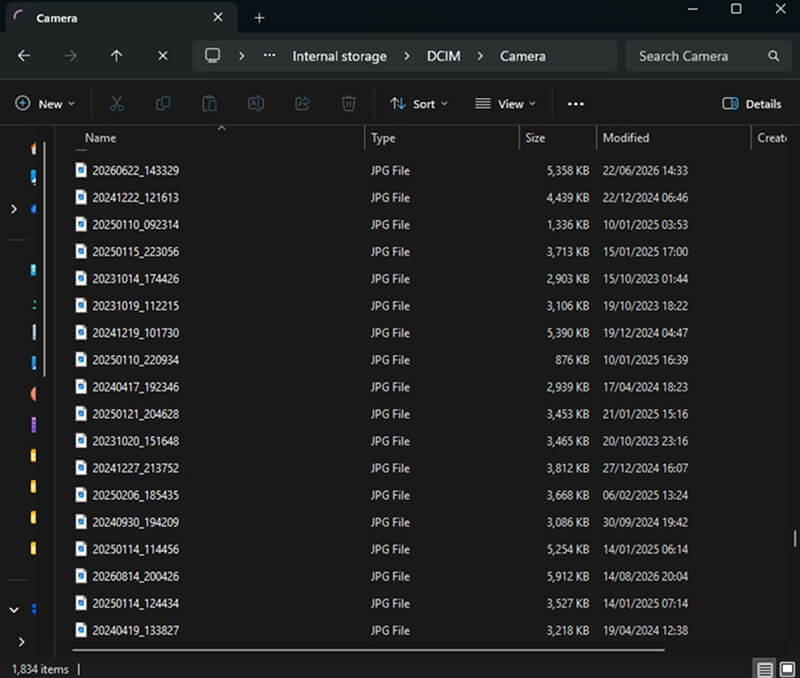
- Navigate to Internal Storage > DCIM > Camera (this is where your photos are stored in most cases; if your photos are saved to your memory card, then you’ll want to navigate to SD Card > DCIM > Camera instead).
- Select the photos you want, copy them, and then paste them into the folder you chose on your computer.
- Once the transfer is finished, open a few of the copied images to confirm they work before deleting anything from your phone (ideally, scroll through them all just to make sure).
Use Microsoft Photos
If you’re just looking to transfer images, Windows lets you do this through the Photos app. The process here is pretty straightforward:
- Open the Photos app.

- Select Import at the top-right corner.
- Choose your connected Android device.
- Once Windows has scanned your phone for available photos, select the images you want to import, and choose where to save them.
Use Phone Link
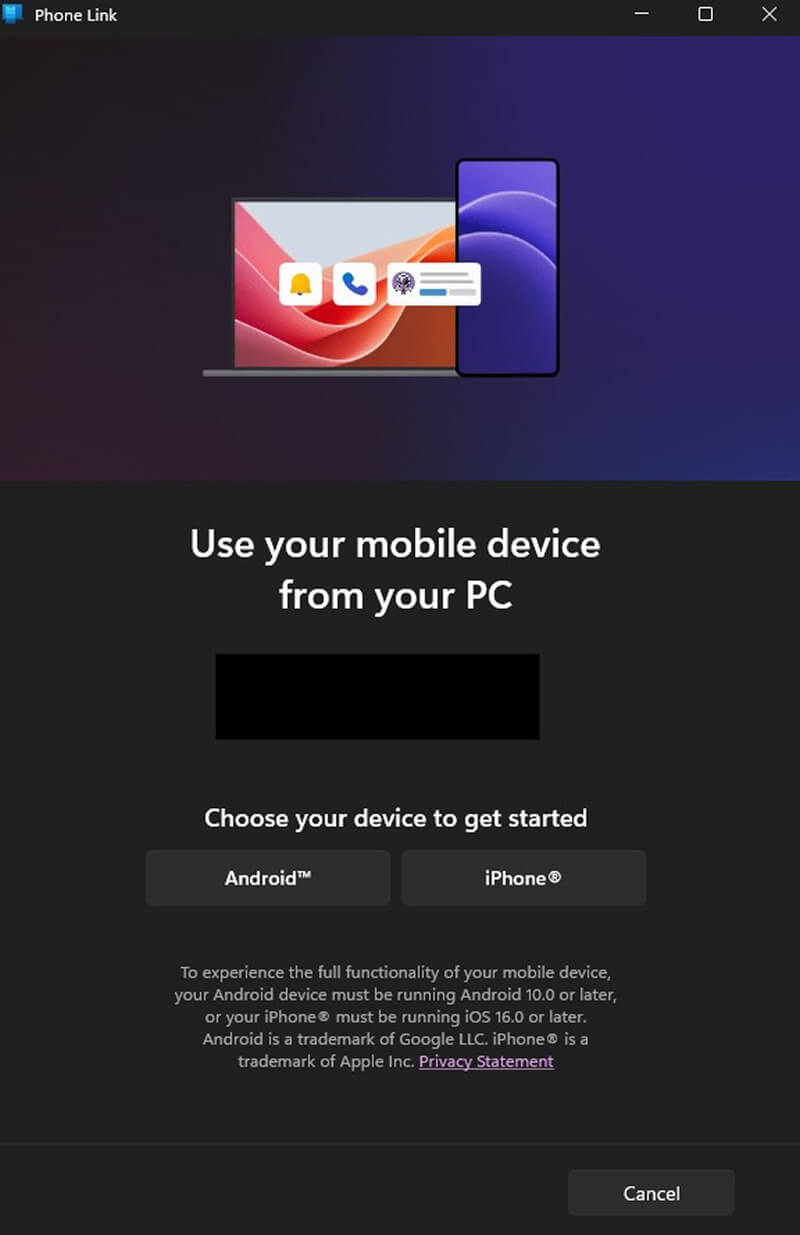
Microsoft Phone Link is useful if you want quick access to recent photos without having to go to the trouble of browsing through your phone’s storage manually. Once your Android device is paired with your PC, you can view recent photos and save the ones you need to Windows.
If you want to transfer or back up a large set of photos, however, USB is likely the more practical option.
Use Quick Share for Windows
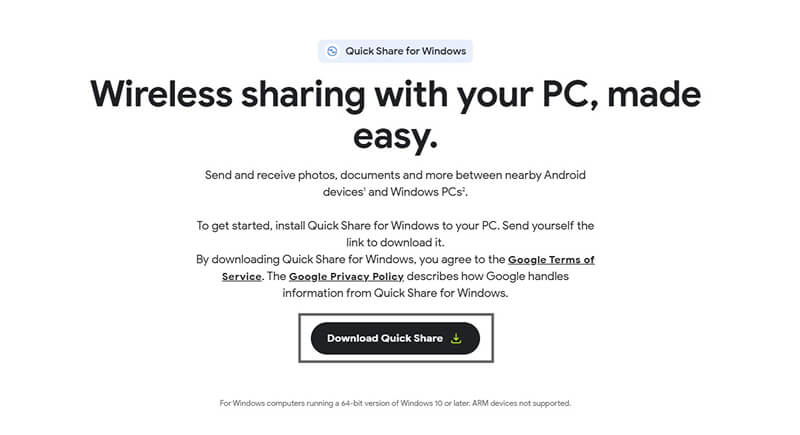
For a cable-free option, Quick Share lets compatible Android devices send photos and other files wirelessly to your Windows PC. Here’s how to use it:
- Download and install Quick Share for Windows from Android’s official website.
- Select the images you want to transfer from your phone, then tap Share > Quick Share.
- Select your computer and accept the transfer on Windows.
How to Transfer Photos from Android to a Mac
Transferring photos directly from Android to a Mac works slightly differently than it does on Windows. This is because macOS doesn’t let you browse most Android phones through Finder the way you can with Windows File Explorer.
In general, you’ll need an Android-compatible file transfer tool for a direct USB transfer. Some trusted, well-reviewed options include OpenMTP and MacDroid.
The exact steps will depend on the utility you choose, but the process typically looks like this:
- Install a trusted Android-compatible file transfer tool on your Mac (you may need to install it on your smartphone, too)
- Connect your Android phone to the Mac with a data-capable USB cable.
- Unlock your phone and select File Transfer when prompted.
- Open the file transfer utility on your Mac.
- Browse your phone's storage and locate DCIM > Camera, Pictures, or another folder containing the images you want.
- Select the photos and copy them to a folder on your Mac.
- Open a few of the transferred images to make sure they copied successfully before you delete anything from your phone.
If you prefer not to install additional software, Google Photos or other cloud storage services may be the simpler option. We’ll cover these cross-platform methods in the next section.
How to Transfer Photos with Google Photos or Cloud Storage
If you’d rather transfer photos without a cable, cloud services are a simple, convenient option that works with both Windows and macOS. They’re particularly useful when your photos are already being backed up automatically from your Android device.
Use Google Photos
First, make sure Backup is enabled in Google Photos and that the photos you want have finished uploading. Then, on your computer:
- Open Google Photos in a web browser.
- Sign in with the same Google account used on your Android phone.
- Select the photos you want to transfer.
- Choose the Download option.
- Save the files to your preferred folder on the computer.
- Open a few downloaded images to confirm that they transferred correctly.
Google Photos is one of the simplest cross-platform options because it works the same way regardless of whether you use Windows or macOS. However, it relies on your photos having been backed up first (and, of course, that you have enough available cloud storage space).
Use Google Drive or Another Cloud Service
Using a general-purpose cloud storage service like Google Drive, OneDrive, or Dropbox follows a fairly similar process. Upload the photos from your Android phone, open the same service on your computer (either via browser or its desktop app), and copy/download your files locally to the folder of your choice.
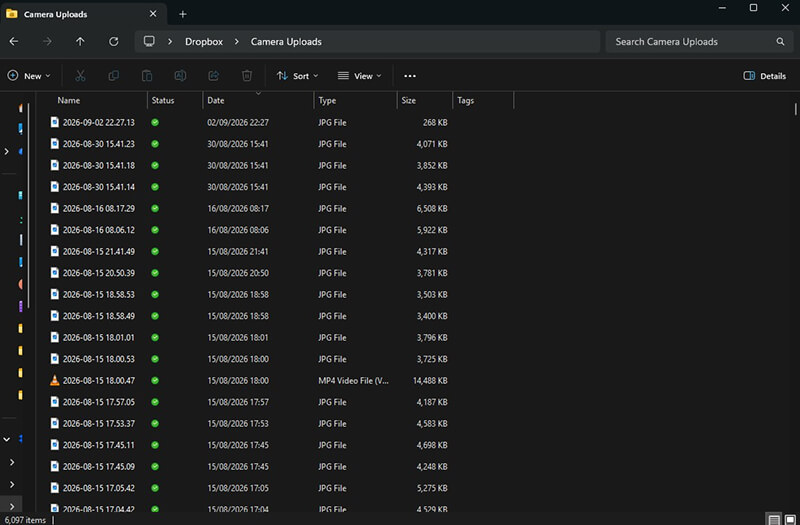
The screenshot above shows Dropbox’s browsing tool within Windows File Explorer.
This method works best for smaller batches, or when USB transfer isn’t an option. It can still work for larger batches, too, but may be limited by your internet connection or available storage space.
Common Android Photo Transfer Issues and Recovery Options
Most photo transfer issues are caused by a problem with the connection, permissions, or storage, rather than any actual data loss. If your computer can’t see the phone or the transfer keeps failing, start with the simplest checks first:
- Make sure your phone is unlocked and that the USB mode is set to File Transfer, not Charging Only.
- If the phone still doesn’t appear, try another data-capable USB cable or USB port.
- Try copying your photos in smaller batches if large transfers keep failing.
- If certain photos seem to be missing, check outside the DCIM folder. They may be stored on an SD card, in Pictures, Downloads, or an app-specific folder. They may also be stored solely on a cloud service like Google Photos.
Most importantly, remember to never delete the originals until you’ve verified your copied files.
Android Photo Recovery Options After a Failed Transfer
If you’ve encountered a failed transfer, don’t worry; this doesn’t necessarily mean your photos are lost. If the originals are still on your phone, SD card, or cloud account, you can usually correct the transfer problem and try again.
Recovery becomes more important if your photos are deleted, missing, corrupted, or trapped on a damaged phone or failing SD card. If you’re dealing with any of those issues:
- Stop using the affected phone or SD card if files are missing.
- Avoid taking new photos or saving new files.
- Check Google Photos Trash and your Gallery app’s Recently Deleted folder.
- Check any cloud storage backups you use.
- Do not format your SD card or factory-reset your phone.
- Avoid using DIY recovery software if your phone has suffered any physical damage.
If your photos are important and you’re unable to safely access them, we can help. Reach out to us at Secure Data Recovery. We specialize in recovering data from Android devices, SD cards, USB storage, and other damaged or inaccessible storage media.
How to Keep Your Photos Backed Up After Transfer
Once your photos are safely on your computer, it’s worth creating a backup routine so you’re never relying on one single device or copy that may fail without warning.
Keep at least two copies of your important photos where possible. This could be something like storing one copy on your computer, another on an external drive, and potentially, a third copy on Google Photos or another cloud backup service for an extra layer of protection.
For your most valuable photo collections (or invaluable data in general), follow the 3-2-1 backup rule: keep three copies of your data, on two different types of storage, with one copy stored in a different physical location or in the cloud.
From time to time, it’s worth opening a few files from your backups to confirm that they’re still accessible and that they still work.
Most importantly, make sure your Android phone isn’t the only place you store your irreplaceable photos.
Transfer First, Delete Later
Whether you use USB, Microsoft Photos, Phone Link, Quick Share, or a cloud service, the safest approach is simple: transfer your photos, verify the copies, and only then delete the originals.
If your photos are deleted, corrupted, inaccessible, or stuck on a damaged Android phone, SD card, or other device, Secure Data Recovery can help you evaluate the safest recovery option for your specific case. We offer a free diagnostic and a No Data, No Recovery Fee guarantee, so you only pay if we successfully recover your data.
Lost access to your photos? We’re here to help 24/7 — reach out to us at 800-388-1266 or start a case online today.

Monica J. White

Monica is a tech journalist with a lifelong interest in technology. She first started writing over ten years ago and has made a career out of it, with a particular focus on PCs, mobile devices, SaaS, and cybersecurity. She enjoys the challenge of explaining complex topics to a broader audience, whether it's how semiconductors work or how to back up your data. Her work has previously appeared in Digital Trends, Tom's Hardware, Pay.com , SlashGear, Forbes, Springboard, Looper, Money, WePC, and more.




.png)
