


A coffee spill can turn a regular workday into a panic in a matter of seconds. Whether it gets on your keyboard, ports, or the desk around your Mac, the first few moments following the spill matter. Even if your screen stays on and the Mac seems to be working fine, it’s best to be cautious.
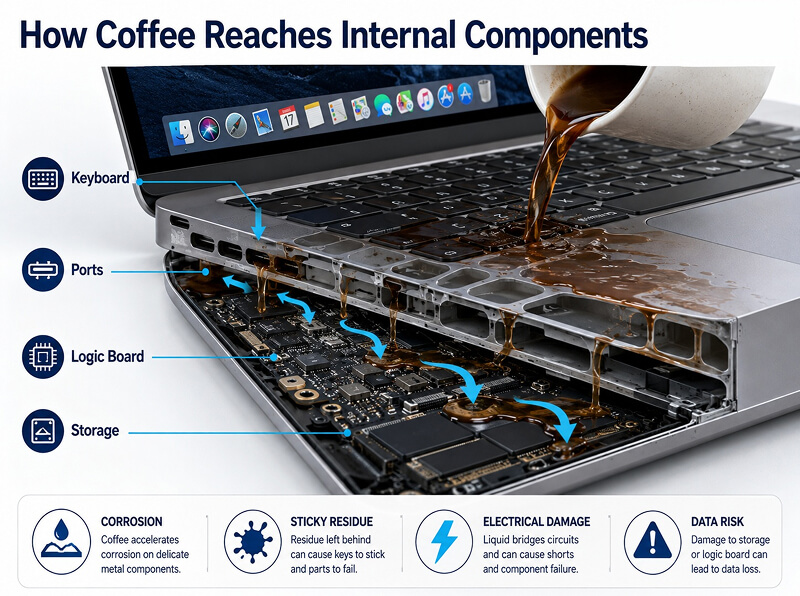
Liquid can travel under the keys, seep into the ports, spread across the logic board, and move toward your Mac’s storage components. Coffee can be particularly damaging because it could leave behind conductive and corrosive residue from acids, minerals, sugar, milk, or cream. This residue can continue causing issues even after the outside of your device seems to be completely dry.
Your priority is to reduce the risk of further electrical damage and protect the data stored on your Mac. Stop using it, power it down, unplug it, and treat the spill as a data risk — not just a simple cleanup job.
Why Coffee Spills Are So Bad for Macs
Coffee spills are more damaging for Macs than most people realize, because the risk doesn’t end when the spilled drink dries up. Coffee is acidic, and that acidity can lead to corrosion on your system’s internal components. And if the drink contained sugar, milk, cream, syrup, or flavorings, this can also leave behind sticky residue that’s hard to remove without opening and cleaning the device thoroughly.
This residue can affect several parts of your Mac, including the keyboard, trackpad, ports, connectors, logic board, and internal storage components. Sometimes, the liquid may cause an immediate short circuit while your device is still on. In other cases, your Mac may seem fine at first, then begin to fail a few hours or days later as the corrosion spreads, or residue interferes with electrical contacts.
This is why waiting to see what happens, charging the Mac, or repeatedly turning it off and on can actually worsen the situation. Even if the outside looks dry, moisture and residue could still be trapped inside your laptop. The safest approach is to stop using it and have it assessed before further power, heat, or DIY troubleshooting causes more damage.
What to Do (And What to Avoid) After a Coffee Spill
The first thing you do after a coffee spill can make a major difference. Your goal is to reduce electrical damage, limit how far the liquid spreads, and ensure the best chance of preserving your data.
What to Do Immediately
The first thing you should do is to immediately power down your Mac. Hold the power button just long enough to shut it down, then stop using the device. If your Mac is connected to a charger, external monitor, hard drive, USB hub, or other accessories, unplug everything as safely as possible.
Try not to press more keys than you need to. Each extra key press can push liquid deeper under the keyboard or spread it toward internal components.
If it’s safe to move your Mac, position it away from the spill area, in a way that liquid drains away from the keyboard, ports, and screen hinge. Then, blot any visible liquid with a lint-free cloth. Don’t wipe aggressively, as this can spread residue into gaps around keys, ports, and the trackpad.
Make sure you keep your Mac powered off. Don’t turn it back on to see if it still works, and don’t charge it. A Mac that appears dry on the outside may still have liquid or sticky residue inside. If the data you have on it is important, contact a professional before you attempt repairs, cleaning, or testing.
What Not to Do After a Coffee Spill
Some online sources may recommend putting the Mac in rice — avoid doing this at all costs. Rice may absorb some surface moisture, but it won’t remove coffee residue, clean corrosion, or protect internal components. It can also leave dust or particles around your computer’s ports and vents.
Do not use a hair dryer, heater, oven, or direct sunlight to dry your Mac. Heat can push liquid deeper into the device, leave residue behind more quickly, or damage delicate components. You should also avoid shaking the Mac aggressively; this can move liquid into areas that weren’t initially affected.
Don’t repeatedly press the power button, and don’t plug in your Mac to check whether it charges. Powering a wet or contaminated device can cause short circuits and make it harder to recover your data down the line.
Finally, do not open your Mac unless you have the correct tools and absolutely know what you’re doing. Modern Macs are compact and delicate — improperly disassembling them can damage connectors, batteries, and internal components. Even if the screen still turns on, this doesn’t mean the device is safe to use. Until your Mac has been properly assessed, treat the spill as an urgent data protection issue.
Coffee, Water, Tea, Soda, and Salt Water: Which Liquids Are Worst?
Any liquid spill can damage a Mac, but some liquids pose a bigger threat than others. The danger depends on what the liquid contains, how much reached your laptop’s internal components, and whether the device was on or charged after the spill happened.
Water
Water is the least damaging liquid you could spill on your Mac. Still, it can cause short circuits and corrosion, especially if your computer is on while wet. Minerals in tap water can also leave residue behind as the water dries up. Remember, despite water being the least harmful liquid, this doesn’t make it automatically safe.
Coffee and Tea
Coffee and tea tend to be more damaging because they often contain acids, minerals, and organic compounds. And if you drink them with sugar, milk, cream, or added flavorings, the risk is increased — these ingredients can leave sticky or corrosive residue on your laptop and its internal components. Even black coffee can leave deposits behind after it dries.
Soda, Juice, and Alcoholic Drinks
Sugary and acidic drinks can be especially messy. They can leave sticky residue, increase corrosion risk, and interfere with keys, ports, and connectors. Alcoholic drinks may also contain sugars, acids, or other additives that cause similar issues.
Salt Water
Salt water is one of the most damaging liquids for electronics. It’s highly conductive and corrosive, meaning it can quickly damage circuits, connectors, and storage media. If salt water gets inside your Mac, you should treat the situation as urgent.
Whatever liquid has been spilled on your Mac, the safest response is the same: power down your Mac, stop using it, don’t charge it, and reach out for professional help if the data is important.

Can Data Be Recovered from a Liquid-Damaged Mac?
You may be able to recover your data after a liquid spill, but how likely it is depends on how fast you respond and how far the damage has spread. One of the biggest factors is whether your Mac was powered on during or soon after the spill. If electricity continues moving through wet or contaminated components, the risk of a short circuit and corrosion increases.
Recovery also depends on where the liquid traveled inside the laptop. A spill that only affects the keyboard or trackpad tends to be less severe than one that makes it through to the logic board, storage components, or internal connectors. The type of liquid matters, too; coffee, tea, soda, or salt water can leave behind residue, which may continue to corrode parts even after your Mac appears to have dried.
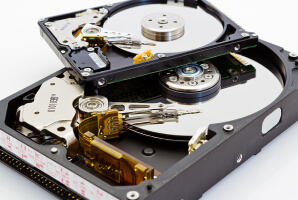
The type of Mac you have is important, too. Many newer Macs use tightly integrated storage, which can make professional evaluation especially important. If your device refuses to boot up, this doesn’t always mean that your data is gone. Depending on the condition of your storage components and the hardware surrounding them, your files may still be recoverable.
Your best protection is always a current backup. If your files aren’t backed up, we’re here to help. Secure Data Recovery can evaluate the extent of the damage to your Mac as a result of the spilled liquid, and we’ll determine the safest recovery path before any further damage occurs.
Why Backups Matter Before a Spill
Liquid damage is one of many reasons it’s important for you to keep current backups as a Mac user. Even if you’re careful, accidental coffee spills can happen; your laptop may get knocked off your desk, a port could be damaged, or you could lose access to a device without warning.
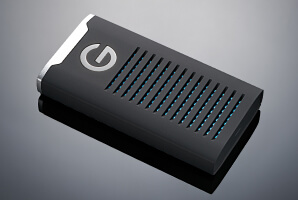
For most Mac users, Time Machine is a simple place to start. You can also use another backup tool, cloud backup service, external drive, or a full 3-2-1 backup strategy with local, offsite, and separate copies of important files.
A safer backup setup should include:
- At least one backup that you store separately from the Mac
- An external drive or cloud backup that you update regularly
- Occasional restore tests to confirm your files can be recovered
- A backup drive that you keep disconnected when it isn’t in use
If you just use a single backup drive, try to avoid keeping it plugged into your Mac all the time. If your Mac is damaged by liquid, power issues, or another type of failure, a connected backup drive could be affected too.
Backups can reduce your downtime and recovery costs. However, if your Mac has liquid damage and you’re not sure whether your backup is complete or up-to-date, stop using your laptop and reach out to us at Secure Data Recovery before potentially worsening the situation.
Real-World Lesson: Turning On Doesn’t Mean It’s Safe
Recently, one of our colleagues at Secure Data Recovery spilled coffee across her Mac keyboard while working and quickly wiped away the visible liquid. At first, the laptop still turned on, so it seemed like the problem might not be serious. A little while later, though, the keyboard stopped working reliably, the trackpad stopped responding — and eventually, the Mac failed to boot entirely.
Instead of repeatedly pressing the power button, charging the device, or trying to dry it with heat, she powered it down and avoided testing it any further. This decision was important: it helped reduce the additional risk of electrical damage, and preserved more recovery options.
This kind of situation is common after liquid exposure. A Mac can appear to work immediately after a spill, even if the liquid or residue is still inside. The safest approach here is to stop using the device, avoid DIY drying methods, and get professional advice if the files on it are irreplaceable.
When to Contact Secure Data Recovery
A coffee spill should be treated as urgent because liquid damage can continue even after your Mac seems to be dry. If there’s any chance that liquid reached the keyboard, trackpad, logic board, or internal storage, your best bet is to power down your Mac, unplug it, avoid charging it, and protect your data first.
Contact Secure Data Recovery if:
- The Mac won’t turn on
- The Mac turns on, but your files are missing or inaccessible
- The keyboard, trackpad, or ports behave strangely
- The Mac was on or charged after the spill
- The liquid contained coffee, sugar, milk, soda, or salt
- The data is important and not backed up
- The device shows signs of corrosion or repeated failure
We can help assess liquid-damaged Macs and affected storage media to determine the safest recovery path for your specific case.
Our specialists handle Mac data recovery, SSD and storage media recovery, and liquid-damaged device evaluations. When needed, we also use professional cleanroom environments to protect damaged media from further contamination.
We also provide secure handling for sensitive data, a free diagnostic, and our signature No Data, No Recovery Fee guarantee.
Protect Your Mac and Your Data
If you’ve spilled coffee, tea, soda, water, or salt water on your Mac and your files are at risk, contact us today. Our specialists can evaluate your device and the damage it has sustained, explain your recovery options, and help you recover your data where possible.
Call us at 800-388-1266, or start a case online today!

Monica J. White

Monica is a tech journalist with a lifelong interest in technology. She first started writing over ten years ago and has made a career out of it, with a particular focus on PCs, mobile devices, SaaS, and cybersecurity. She enjoys the challenge of explaining complex topics to a broader audience, whether it's how semiconductors work or how to back up your data. Her work has previously appeared in Digital Trends, Tom's Hardware, Pay.com , SlashGear, Forbes, Springboard, Looper, Money, WePC, and more.






.png)
