


If your iPhone keeps restarting, it could be due to issues like outdated or incomplete iOS updates, battery health degradation, or hardware failures. Such problems can lead to frequent restarts or continuous reboot cycles, commonly referred to as boot loops or restart loops. The longer your iPhone remains stuck in these cycles, the higher the risk of data corruption or permanent data loss.
We’ll walk you through common causes and potential solutions. However, if basic troubleshooting fails to resolve the issue, seeking expert iPhone data recovery services is your safest option. Our experts specialize in safely retrieving data from even the most challenging situations.
How To Fix an iPhone That Keeps Restarting
The first step is to identify the underlying cause and apply the most appropriate fix. The methods outlined below are tailored to address the specific causes highlighted in below, allowing you to target the problem directly and efficiently. Whether your issue stems from a faulty app, battery issues, or outdated software, these step-by-step instructions will guide you through resolving the problem and restoring your iPhone to normal functionality.
1. Force Restart Your iPhone
Frequent restarts or boot loops on your iPhone can often be caused by minor glitches, such as unresponsive apps or software issues. A forced restart is a simple yet effective way to address these issues and restore your iPhone’s functionality without deleting any of your data.
Here’s how to force restart your iPhone, based on your model:
- For iPhone 8 or newer models:
- Quickly press and release the Volume Up button.
- Quickly press and release the Volume Down button.
- Hold the Side button (power button) until the Apple logo appears.
- For iPhone 7 and 7 Plus:
- Press and hold the Volume Down button and the Power button at the same time.
- Release both buttons when the Apple logo appears.
- For iPhone 6s or older models:
- Press and hold the Home button and the Power button at the same time.
- Release both buttons when the Apple logo appears.
2. Update Your iOS System
Outdated or incomplete iOS updates are a common cause of frequent restarts and restart loops on iPhones. These issues can disrupt your phone’s performance, but updating your iOS system often resolves software bugs and improves stability. This process will not delete any of your data.
How to update your iPhone through settings:
- Ensure your iPhone is connected to Wi-Fi and has at least 50% battery (or is connected to a charger).
- Open the Settings app.
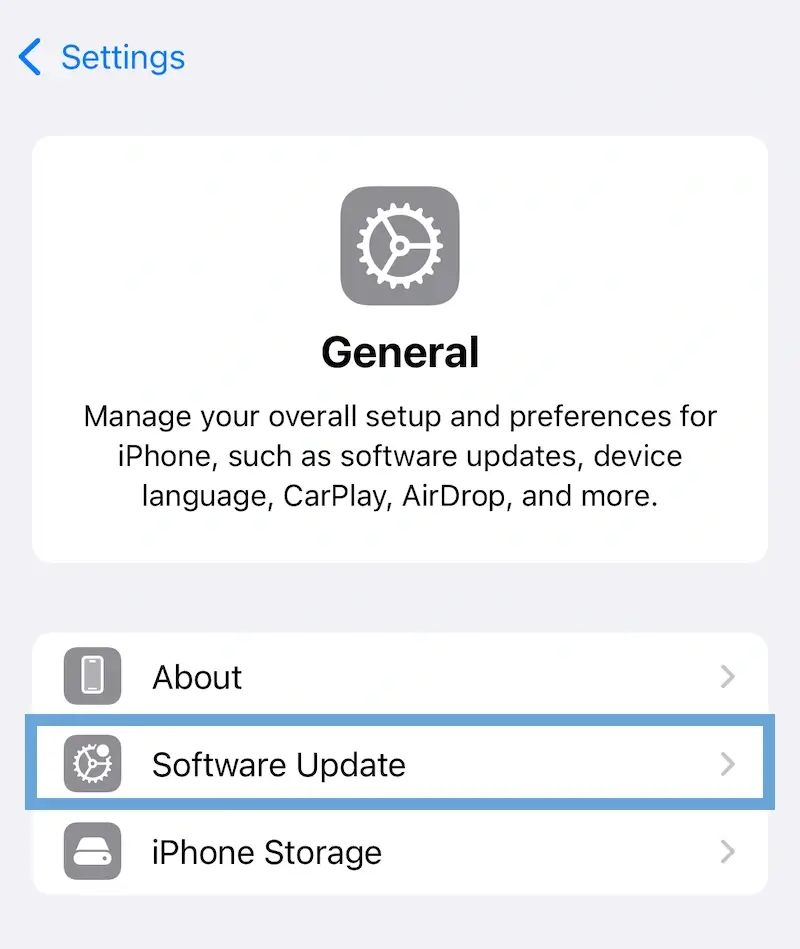
- Tap General, then Software Update.
- If an update is available, tap Update Now
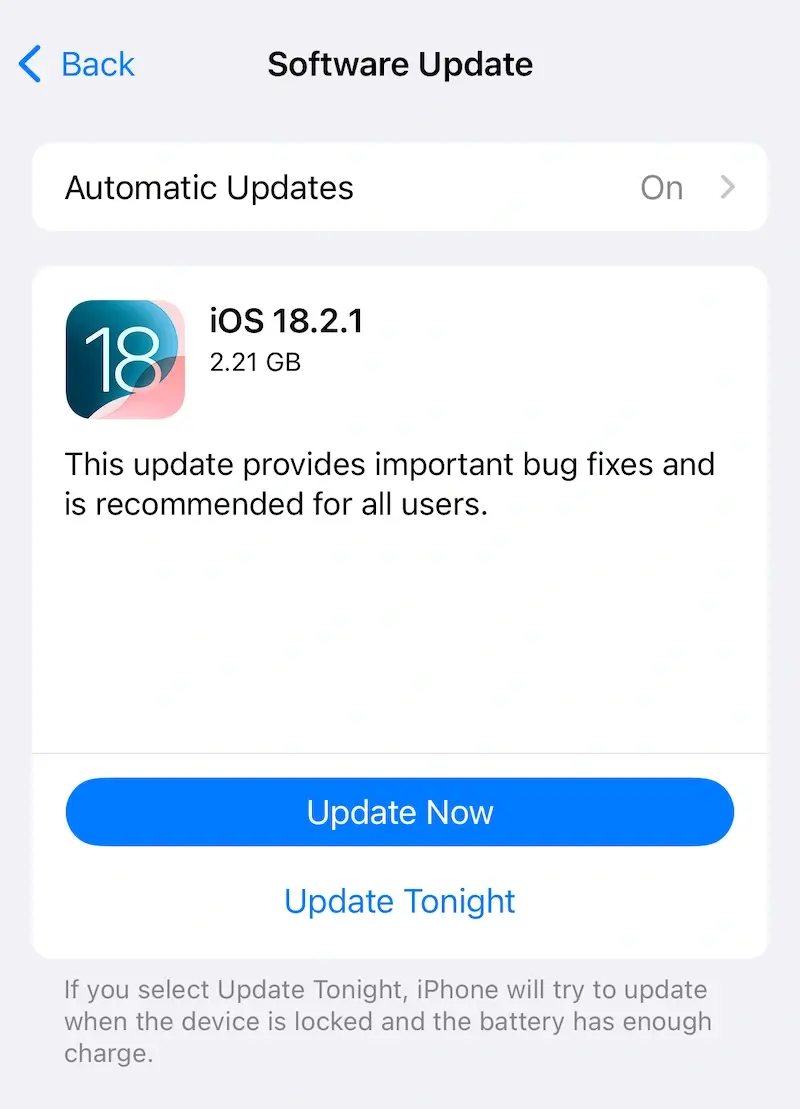
- Follow the on-screen instructions to download and install the update.
What to do if your iPhone is stuck in a restart loop:
If you cannot access your settings because your iPhone is caught in a restart loop, you can update it through a computer using iTunes or Finder.
- Connect your iPhone to a computer with a USB cable:
- On a Windows PC: Ensure iTunes is installed and updated.
- On a Mac: Open Finder (macOS Catalina or later) or iTunes (earlier macOS versions).
- Put your iPhone into Recovery Mode:
- iPhone 8 or newer: Press and release the Volume Up button, then the Volume Down button, and hold the Side button until the Recovery Mode screen appears.
- iPhone 7 and 7 Plus: Press and hold the Volume Down button and the Power button together until the Recovery Mode screen appears.
- iPhone 6s or older: Press and hold the Home button and the Power button until the Recovery Mode screen appears.
- When prompted on your computer, select Update (not Restore) to reinstall iOS without erasing your data.
- Follow the on-screen instructions to complete the update.
3. Analyze and Uninstall Faulty Apps
Faulty or buggy apps can sometimes cause your iPhone to crash or even trigger restart loops. Identifying and uninstalling problematic apps is often an effective way to resolve these issues. Removing these apps will only delete the data linked to them, leaving the rest of your iPhone’s data untouched.
How to identify and uninstall problematic apps:
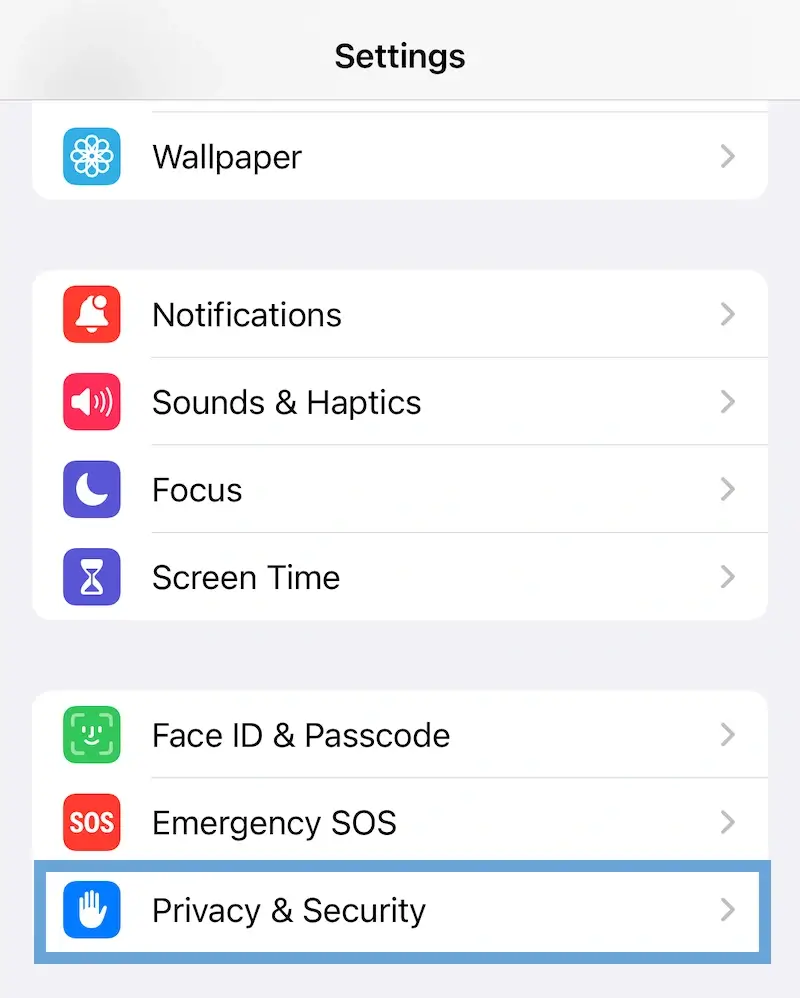
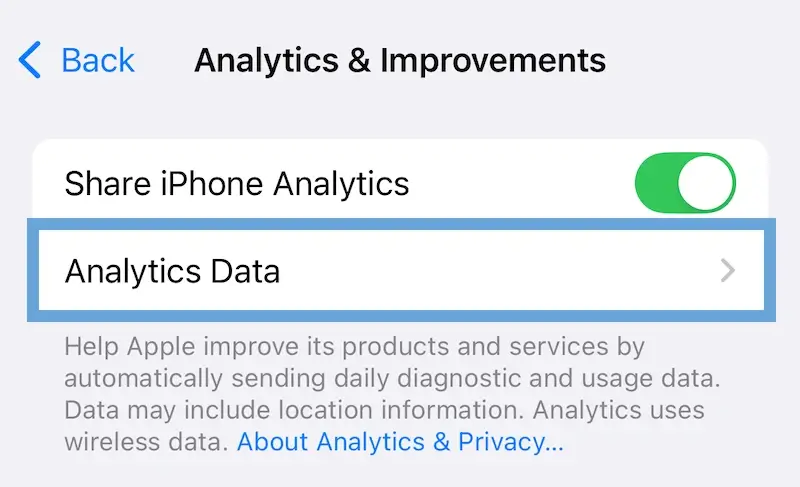
Open the Settings app on your iPhone and tap Privacy & Security.
Then select Analytics & Improvements.
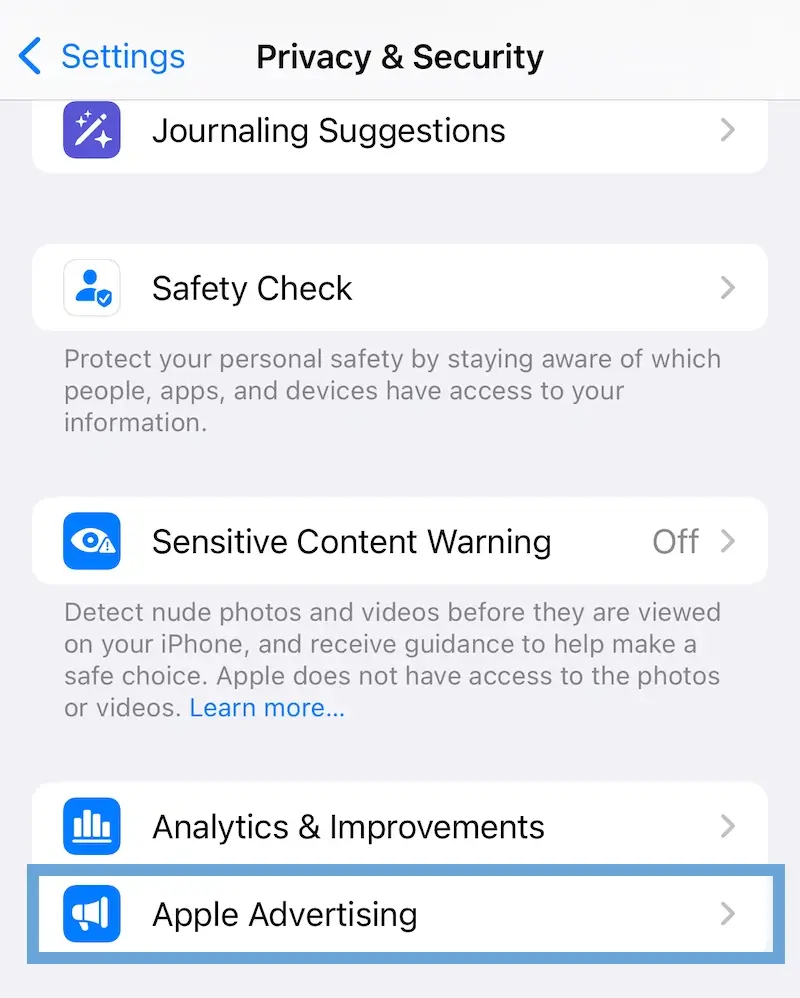
Select Analytics Data and review the list for any apps that appear repeatedly in the crash reports. Apps listed frequently in these logs are more likely to be causing issues.
Once identified, go to Settings > General > iPhone Storage.
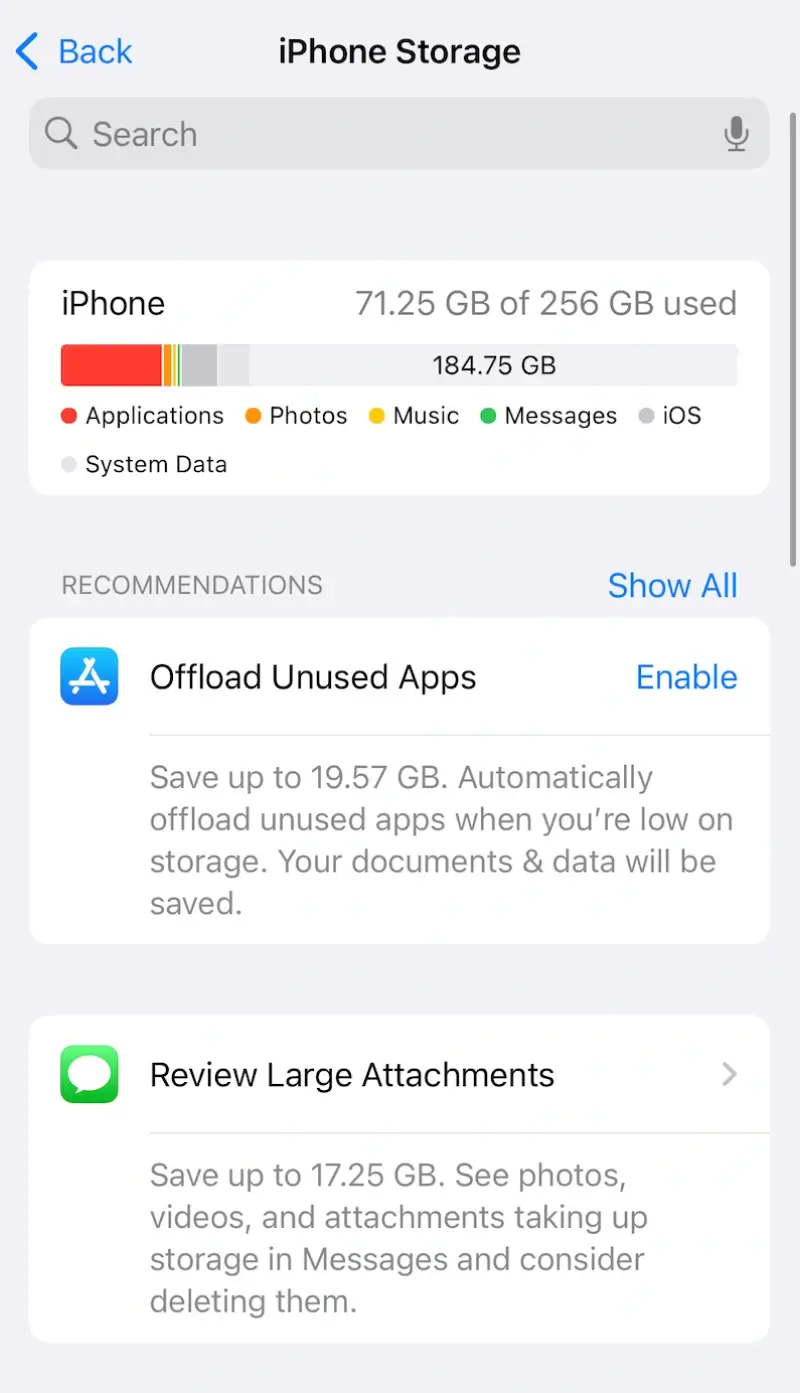
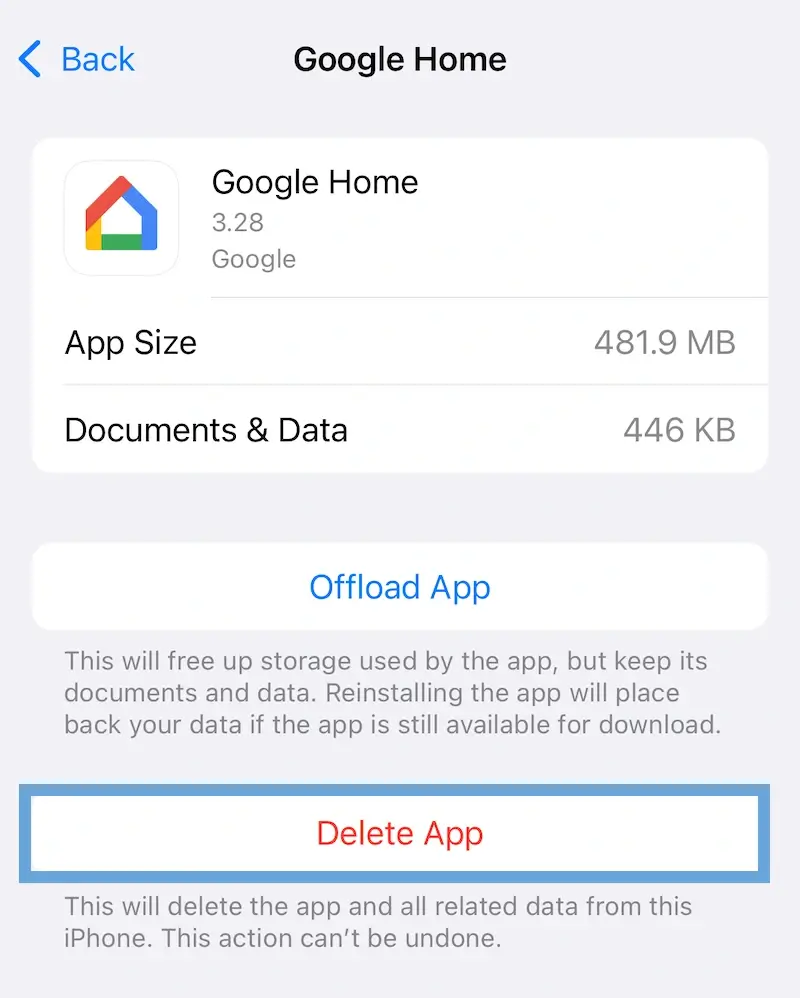
Scroll through the list of installed apps, find the app causing issues, and tap it.
Select Delete App to uninstall it from your device.
4. Check Your Battery Health
A failing or degraded battery is a common cause of frequent shutdowns and restart loops on iPhones. As batteries age or become damaged, they may no longer provide stable power to your device, resulting in performance issues. Checking your battery’s health can help you determine if the battery is the source of the problem and whether you need a battery replacement.
How to check your battery health:
Open the Settings app on your iPhone.
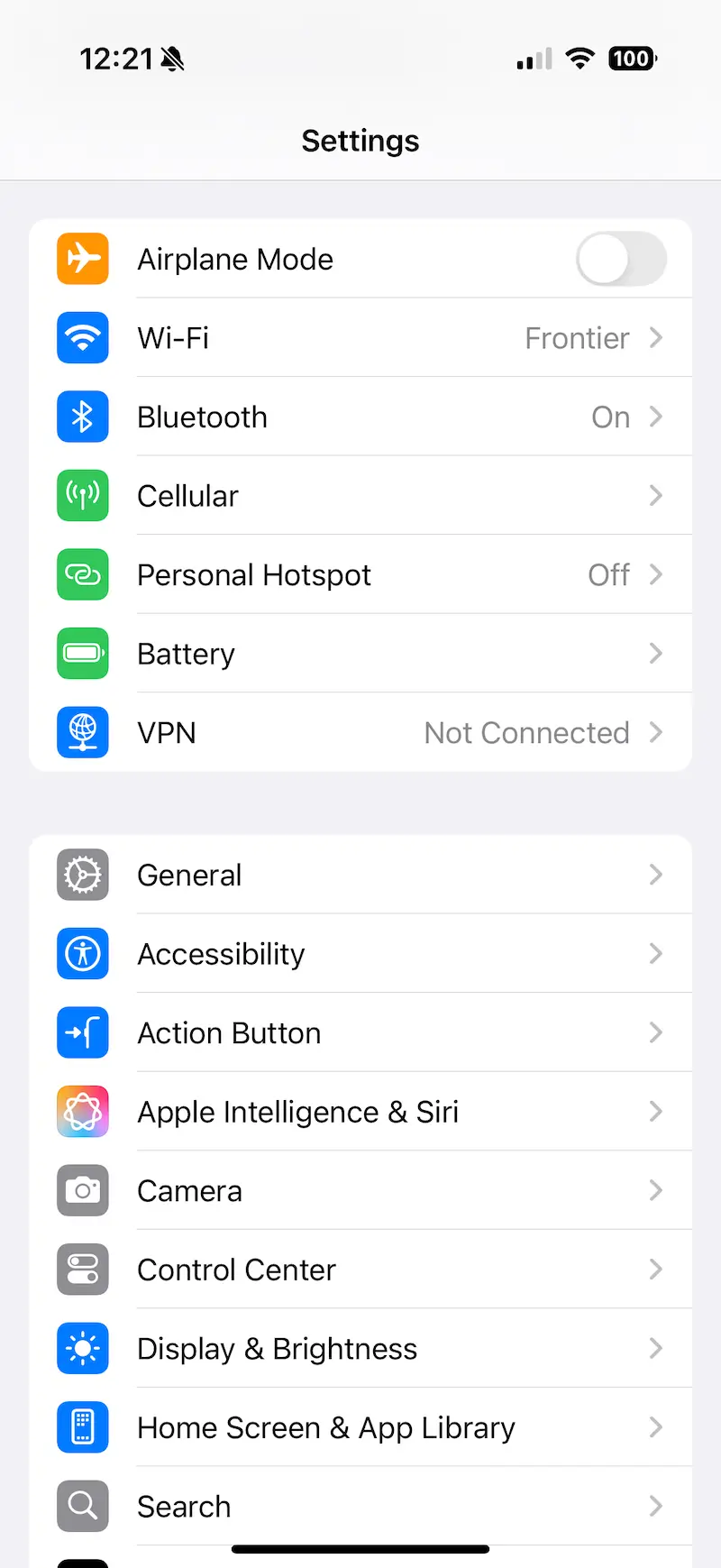
Tap Battery, then Battery Health.
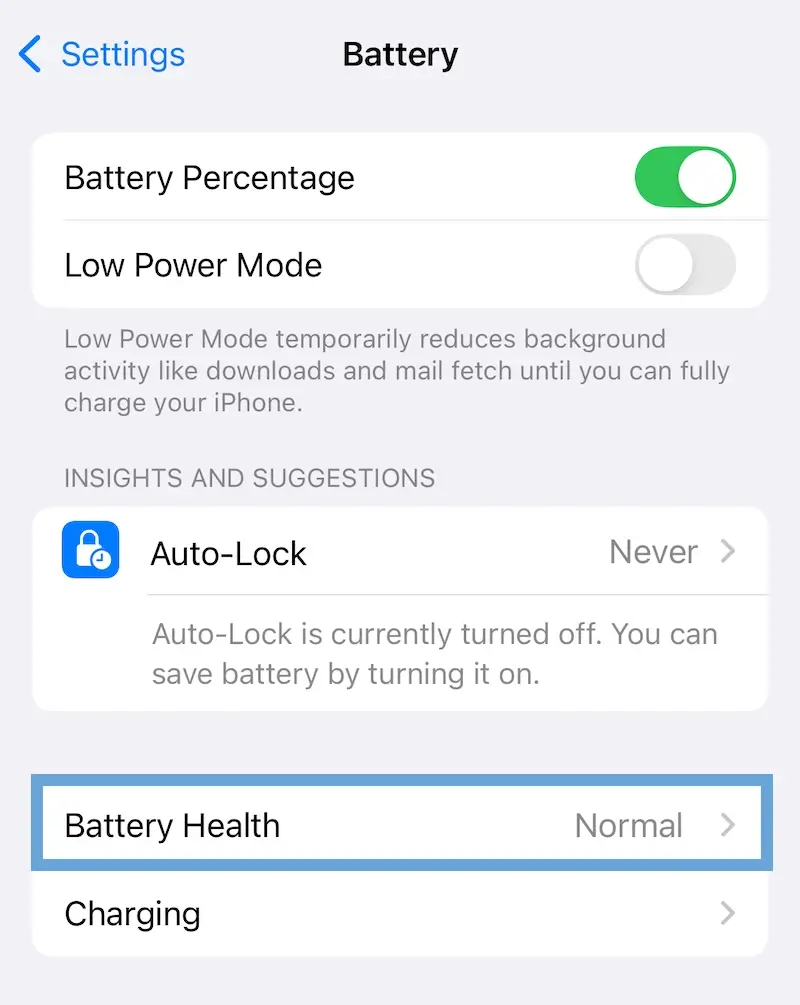
Look at the Maximum Capacity percentage:
If the capacity is below 80%, your battery may no longer hold a sufficient charge, and replacement is likely necessary.
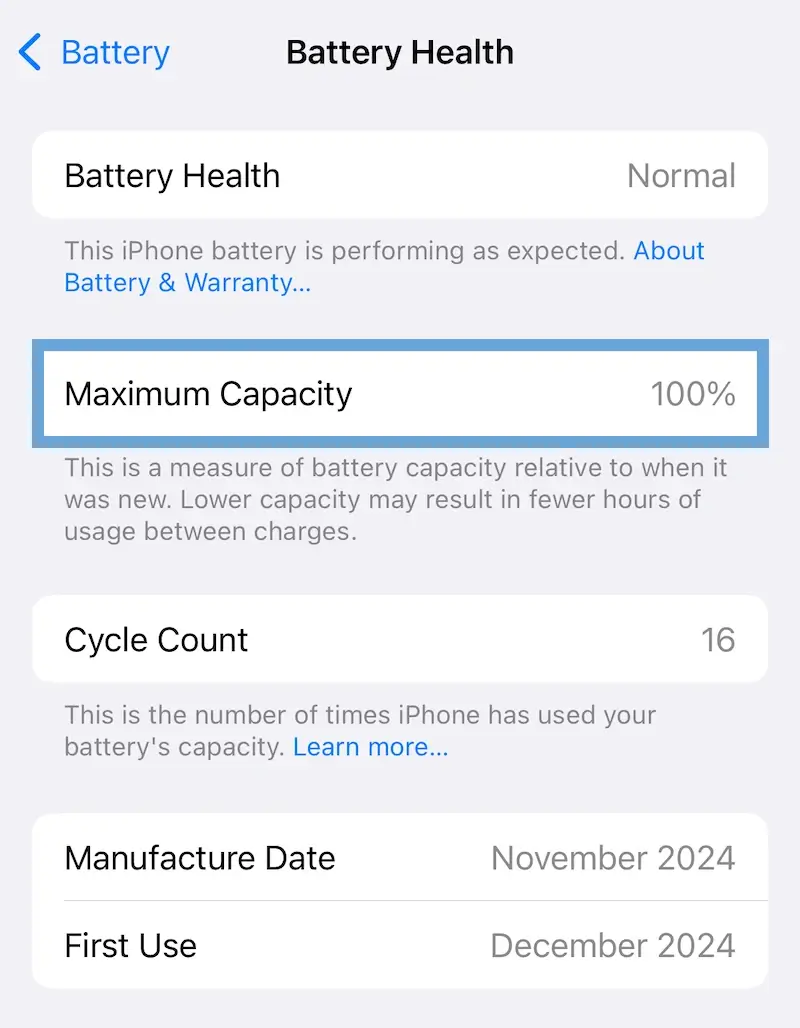
If your battery is the problem, contact Apple Support or visit the Apple Store to replace the battery safely and restore your iPhone’s functionality. Make sure you back up your data first.
5. Restore iPhone via iTunes or Finder
When software problems persist, a full system restore may be necessary to fix the issue. Restoring your iPhone erases all data and settings, reinstalling the operating system to eliminate deeper software glitches. Performing a restore will delete all data on your iPhone unless you back it up first.
If your iPhone is stuck in a restart loop and you’re unable to create a backup, consider contacting Secure Data Recovery. Our experts can safely retrieve and preserve your files before proceeding with a restore.
How to restore your iPhone using iTunes or Finder:
- Connect your iPhone to a Windows PC or Mac.
- Open iTunes (or Finder on macOS Catalina or later).
- Put your iPhone into recovery mode (following the instructions outlined in method 2).
- Once in Recovery Mode, you’ll see options to Update or Restore in iTunes or Finder. Choose Restore to erase your iPhone and reinstall the operating system.
- Follow the on-screen instructions to complete the restore process.
6. Perform a Factory Reset
A factory reset erases all data and settings on your iPhone without reinstalling the operating system or firmware. This method is particularly effective for resolving persistent restart issues caused by faulty apps or corrupted settings. However, since this process permanently deletes all data on your device, it’s crucial to back up your information beforehand.
If you’re unable to create a backup using iCloud or iTunes, contact Secure Data Recovery for iPhone data recovery services before proceeding.
How to reset all settings to factory mode:
Back up your iPhone.
Open Settings app.
Tap General, then Transfer or Reset iPhone.
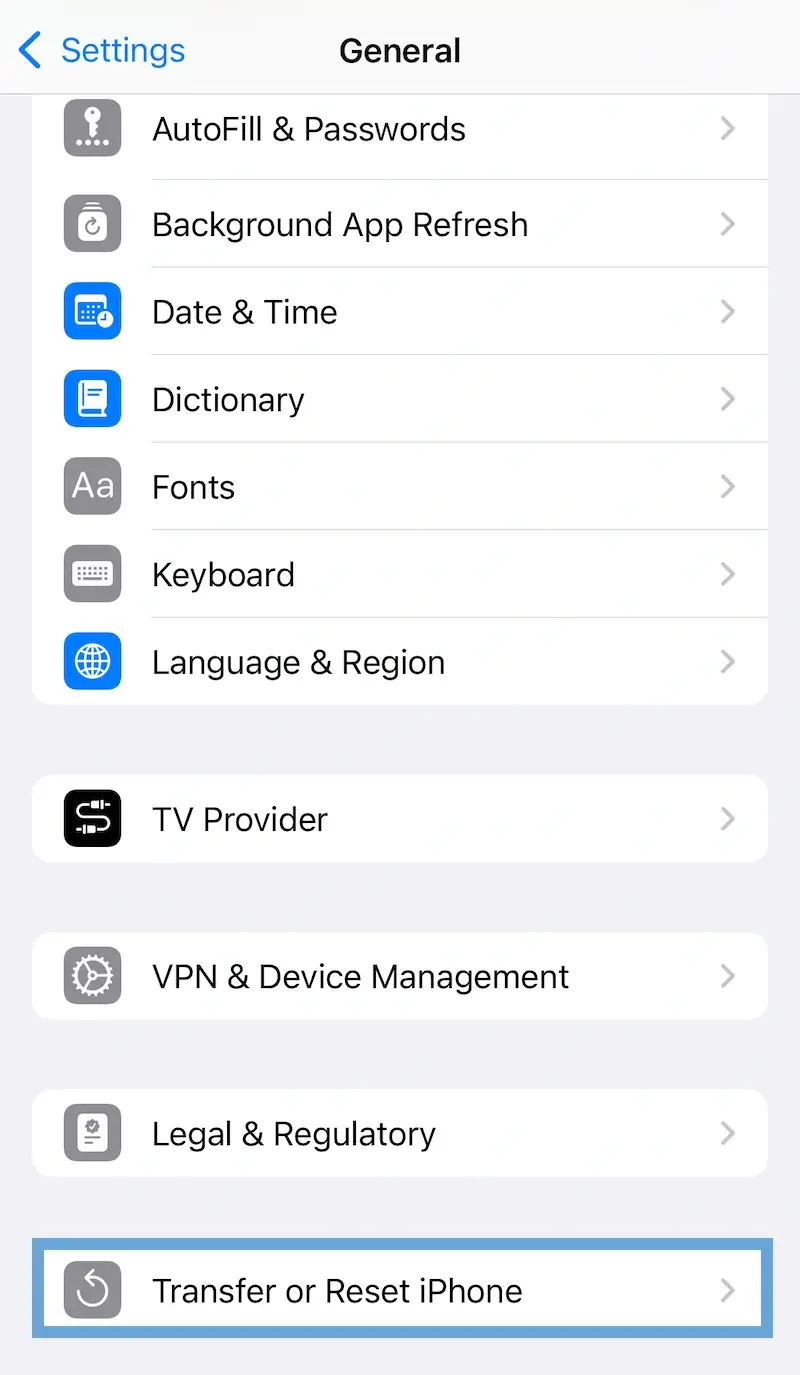
Tap Erase All Content and Settings.
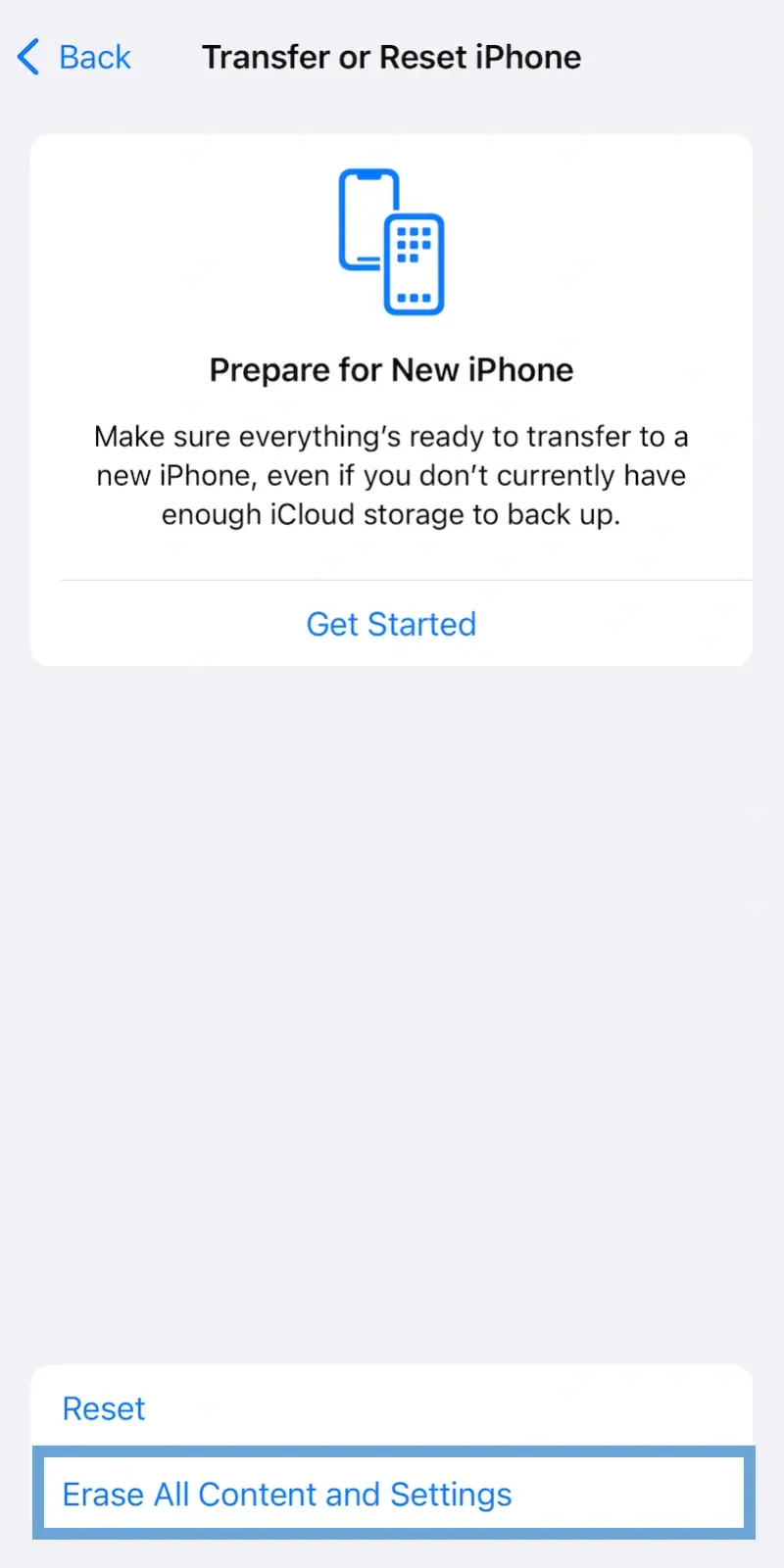
Follow the on-screen instructions to confirm and reset your iPhone.
7. Use DFU Mode To Reinstall iOS and Firmware
DFU mode (Device Firmware Update) is a powerful troubleshooting tool that reinstalls both iOS and firmware without loading the current operating system. It’s an effective solution for resolving severe software or firmware problems. Unlike recovery mode, which only reinstalls iOS while preserving the existing firmware, DFU mode bypasses the operating system entirely, offering a more comprehensive reset.
This method is typically used as a last resort when all other troubleshooting attempts have failed. However, because DFU mode erases all data on your iPhone, it’s crucial to back up your information beforehand. If a backup isn’t available due to restart loops or other issues, consider contacting a data recovery service to safely retrieve your data before proceeding with this advanced method.
How to use DFU mode on your iPhone:
- Connect your iPhone to a Windows PC or Mac.
- Enter DFU mode on your iPhone (model-specific instructions):
- iPhone 8 or newer models:
- Quickly press and release the Volume Up button, then the Volume Down button.
- Hold the Side button until the screen goes black.
- Release the Side button and immediately hold the Volume Down button and the Side button together for 5 seconds.
- Release the Side button but continue holding the Volume Down button for another 10 seconds.
- iPhone 7 and 7 Plus:
- Hold the Power button and the Volume Down button together for 8 seconds.
- Release the Power button but continue holding the Volume Down button for another 10 seconds.
- iPhone 6s or older models:
- Hold the Home button and the Power button together for 8 seconds.
- Release the Power button but continue holding the Home button for another 10 seconds.
- iPhone 8 or newer models:
- The screen should remain black, indicating DFU mode.
- iTunes or Finder will detect your iPhone in DFU mode and prompt you to restore the device.
- Follow the on-screen prompts on your Mac or PC to reinstall iOS.
Reasons Your iPhone Keeps Restarting
Frequent restarts on your iPhone can be caused by a variety of issues, ranging from minor software bugs to serious hardware failures. Pinpointing the cause is essential for finding the most effective solution and preventing further damage to your device or data.
Below, we’ve outlined the most common reasons your iPhone might be restarting, including how likely you are to resolve each problem on your own.
SIM Card or Accessory Issues
Poorly seated SIM cards or third-party accessories may disrupt performance, causing restarts. Look for issues after inserting SIMs or using accessories.
Likelihood of Fixing: High
Reseating or removing accessories can typically offer a resolution.
Reseat the SIM card and force restart your iPhone. Replace third-party accessories with Apple-certified ones if needed.
Faulty Apps

Buggy or poorly optimized apps can cause crashes, freezing, or restart loops.
Likelihood of Fixing: High
In most cases, removing problematic apps will resolve the issue.
Analyze and uninstall faulty apps. If issues persist, try performing a factory reset.
iOS Issues

Outdated, incomplete, or corrupted iOS updates can trigger restart loops or frequent crashes.
Likelihood of Fixing: Moderate to High
A system update often resolves these problems.
Update your iOS system via Settings for minor issues. For persistent problems, restore iPhone via iTunes or Finder, or use DFU mode for severe cases.
Overheating

Resource-heavy apps, prolonged use, or hot environments can cause your iPhone to shut down repeatedly.
Likelihood of Fixing: Moderate to High
This can sometimes be fixed, unless battery or hardware issues are causing the iPhone to overheat.
Check your battery health to rule out battery issues. Then, let your phone cool off before trying a forced restart.
Malware

Malicious software, often from non–App Store downloads, can destabilize your system and cause unusual behavior or restarts.
Likelihood of Fixing: Moderate
For severe cases, professional services may be needed.
Analyze and uninstall faulty apps if needed. If issues persist, use DFU mode to completely reinstall iOS and remove malware.
Firmware Issues

Corrupted or outdated firmware can cause continuous reboot cycles, boot loops, or the iPhone getting stuck on the Apple logo screen.
Likelihood of Fixing: Moderate to Low
In some cases, reinstalling the firmware can fix these issues, but it does require advanced troubleshooting.
Use DFU mode to reinstall both iOS and firmware. Contact Secure Data Recovery to preserve your data before attempting this.
Battery or Hardware Issues

Failing batteries or damaged components like charging ports can cause boot loops, random restarts, and overheating.
Likelihood of Fixing: Low
This usually requires professional repairs or replacements.
Check your battery health. If your battery health is fine but your device continues to restart, contact Secure Data Recovery to protect your data before repairs.
What To Do if Rebooting Issues Persist After Troubleshooting
If your iPhone keeps restarting after trying the steps above, the problem may be more serious. Hardware damage, corrupted firmware, or a failing component could be the cause. At this point, stop troubleshooting on your own. Continuing to experiment with fixes can make things worse and put your data at risk.
Contact Apple Support: Apple Support can run detailed diagnostics, especially if the issue is related to a hardware defect or a known software bug. If your device is still under warranty, this is a good first step.
Get Professional Help for Your Data: If your iPhone is stuck in a restart loop and you cannot back up your files, contact a professional data recovery service. Persistent reboots often point to deeper issues that standard troubleshooting cannot resolve.
Tips for Preventing iPhone Reboot Loops
A few simple habits can help you avoid restart issues in the future:
- Keep iOS updated. Software updates include bug fixes and security patches that address known issues causing restarts.
- Only download apps from the App Store. Unofficial sources can introduce malware or unstable code that destabilize your device.
- Monitor your battery health. If Maximum Capacity drops below 80% or you see a "Service Recommended" message, consider replacing the battery.
- Avoid overheating. Keep your iPhone out of direct sunlight and avoid charging while running intensive apps.
- Use Apple-certified accessories. Third-party chargers and cables without certification can cause hardware issues and inconsistent power delivery.
- Restart your iPhone regularly. A simple reboot clears minor software glitches and keeps your system running smoothly.
- Free up storage. Make sure your iPhone has enough space for the operating system to function properly.
- Watch for crashing apps. If an app appears in your crash logs frequently, update or uninstall it.
Resolve iPhone Restart Loops Without Risking Your Data
When your iPhone keeps restarting, it is a sign something is wrong. The fix depends on the cause, whether that is a faulty app, a failing battery, or a deeper software issue.
Many fixes can be done at home, but restoring or resetting your device carries a real risk of data loss if not handled carefully. If you are unsure about backing up your data or suspect hardware failure, our engineers can help recover your files safely.
Don't let restart loops put your photos, messages, and important files at risk. Contact our iPhone data recovery team today.

Timothy Burlee

Timothy Burlee is a content writer for Secure Data Recovery Services. He specializes in various topics in the data industry, including data recovery technology, storage devices, and digital forensics. Throughout his career, he has covered complex concepts and provided accessible solutions for users. Before joining Secure Data, he worked as a freelance technical writer.









.png)
