


We frequently see water-damaged iPhones and iPads at Secure Data Recovery. From dropping the device in the sink to a quick dip in the pool with it, water damage is commonplace. Knowing how to respond to the incident can save the iPhone or iPad from permanent failure and prevent data loss.
Our experts explain some DIY techniques and offer effective solutions for dealing with your water-damaged device.
Quick Facts:
- Careful: Recent iPhone models have high water resistance, but these devices are not immune to damage when exposed to liquids.
- Act Fast: Taking immediate action can prevent permanent water damage and data loss.
- Seek Help: Learn how to spot the signs of water damage and when to consult an expert.
Understanding Water Resistance
Apple tests the water resistance of devices in a controlled setting and rates them according to International Electrotechnical Commission standards. The rating, known as the IP Code, measures ingress protection. The latest iPhones and iPads have high water resistance (IP68) due to upgraded cases and covers. However, they are still vulnerable to damage when exposed to water, so these mobile devices are not waterproof.
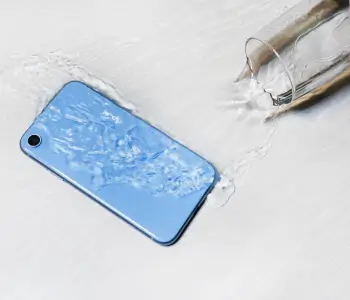
Here are the ratings for Apple’s most recent iPhone models. Depth and duration reflect protection up to that point.
Real-world results can differ from lab tests. Seals wear over time. Some repairs, such as screen replacements, degrade the iPhone’s water resistance. In addition, the type of liquid matters. For example, seawater corrodes electronic components faster than freshwater. A corroded logic board may require complex repairs before retrieving data.
iPad Water Resistance
iPads do not have a certified rating for water resistance. For that reason, you should keep your iPad away from liquids if possible. Promptly treat the tablet if it becomes wet to reduce the risk of failure and data loss.
Immediate Steps for Any Water-Damaged iPhone and iPad
- Take the iPhone or iPad out of water. The longer your device stays submerged, the more likely it is to suffer severe damage.
- Power down the iPhone or iPad. Turn it off as soon as possible to prevent electrical issues like a short circuit.
- Remove external components and SIM card if relevant. Protective cases and other external components could cause water to get trapped in the device.
- Pat with a soft cloth. Use a lint-free cloth to dry the iPhone or iPad. Do not rub water off the device, as it could push water further into the chassis.
- Avoid heat. Do not use a hair dryer to remove excess water from the smartphone or tablet. Directing extreme heat into the charging port could damage components on the logic board.
- Store the iPhone or iPad with silica gel packets. Place the mobile device in a bag with silica gel packets for 24 to 48 hours. Silica gel absorbs moisture without introducing dust like rice.
- Allow the device to air dry. Tilting it in a well-ventilated area could help liquid drain through the connector.
- Check the Liquid Contact Indicator (LCI). iPhones have an indicator that changes colors when it comes into contact with water. Apple Support provides a table to show the location of the LCI on each iPhone model. The LCI on most iPads is found in the headphone jack or charging port.
- Test the device. Restart it after the 48-hour period. Charge the device only if the port is completely dry.
Remember: Be patient. Give the iPhone or iPad time to dry. For best results, leave the device upright in a dry location with sufficient airflow.
What NOT To Do for Water Damage
Here is what to avoid doing after your iPhone or iPad encounters liquid.
- Do not charge the device. Using the charging port on a wet iPhone or iPad can cause electrical issues and even fire. Ensure the device is completely dry before connecting to a power source.
- Do not use the iPhone or iPad while wet. Usage raises the risk of severe water damage and complex, costly repairs.
- Do not dismantle the device. Though tempting, dismantling the smartphone or tablet to inspect the logic board for signs of water damage can make the problem worse.
- Do not restore it to factory settings. This process might trigger hardware failure.
Common Myths About Water-Damaged Devices
Myth 1: Store the iPhone or iPad in a bag of rice. Silica gel is more effective than rice because it absorbs moisture without dust or starch.
Myth 2: Hair dryers and heat sources help. Forcing hot air through the ports can damage internal components or spread water across the logic board.
Myth 3: Checking to see if the device still functions is safe. Using the iPhone or iPad immediately after exposure to liquid could damage its electronics.
Eject Water From iPhone With Shortcut
Once the water has dried, you can use Shortcuts to eject any residual water from the speakers of your Apple device. The Water Eject shortcut produces a series of sounds and vibrations designed to dislodge the remnants of liquid.
Follow these steps to use Water Eject on iOS:
Visit iCloud to install the shortcut.
Tap Get Shortcut at the bottom of the screen.
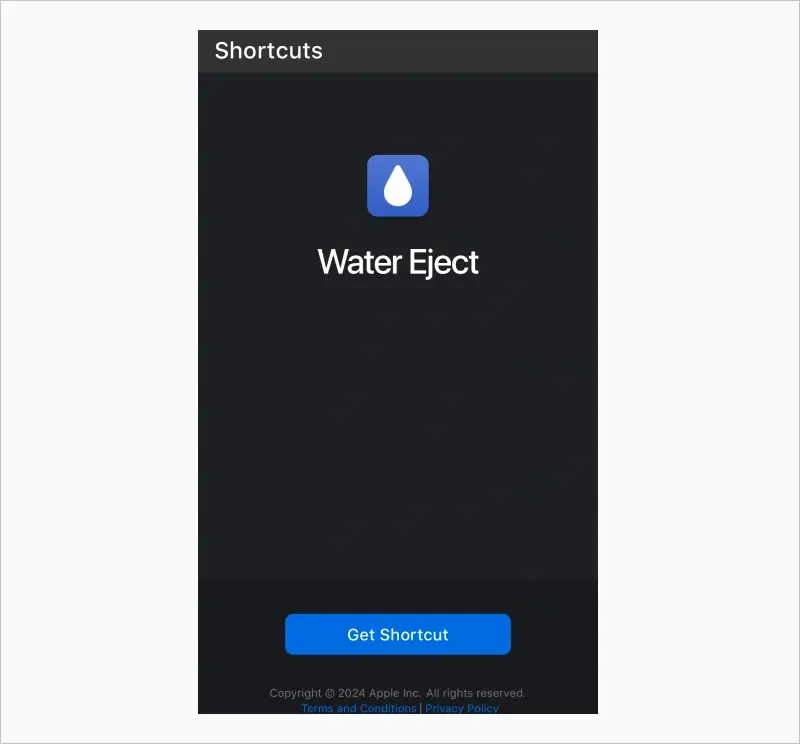
Tap Add Shortcut to confirm.
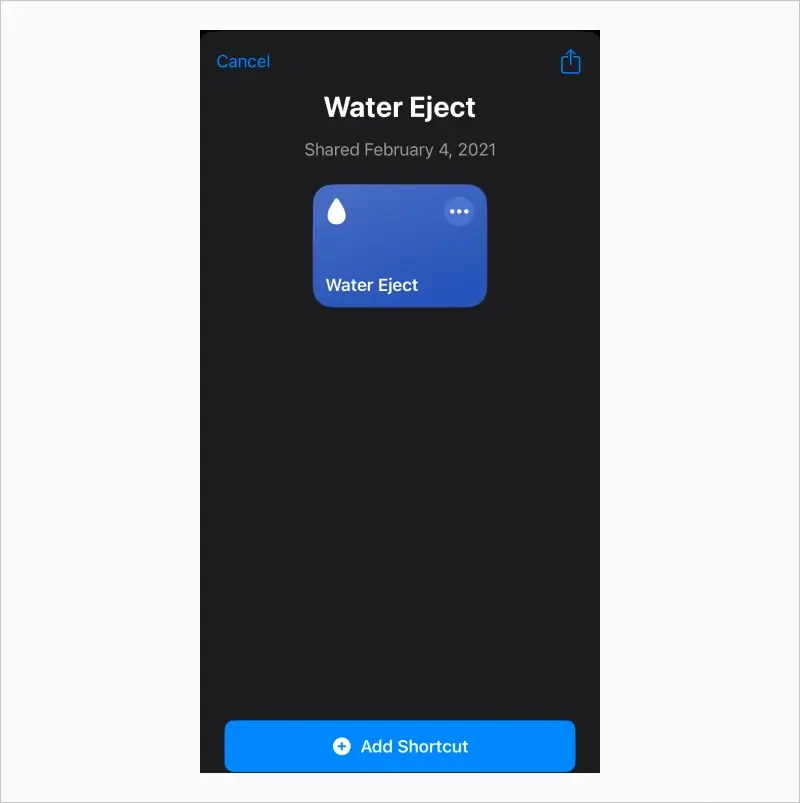
Open the Shortcuts app.
Tap the Water Eject shortcut.
Tilt the speakers downward to facilitate the natural flow.
Select Begin in the menu.
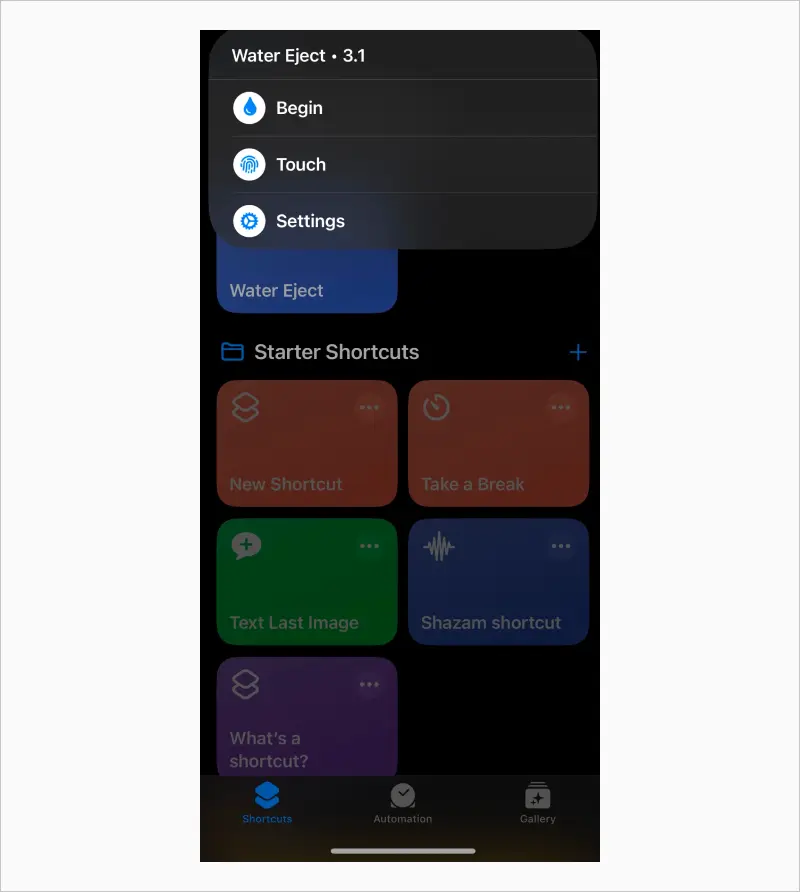
Wait for the sounds to finish playing.
Note: This shortcut is not an initial fix. It would still be best to dry the iPhone before use.
When To Seek Professional Help
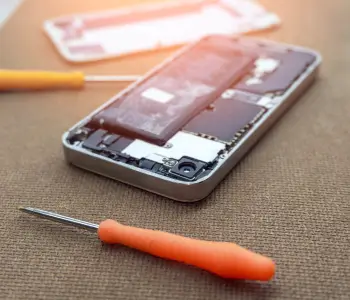
Sometimes, enlisting the help of an expert is essential. Recognizing these signs can prevent additional damage and ensure a smooth repair process.
- The device does not start.
- There is moisture inside the screen or visible evidence of water damage.
- Functional issues like an unresponsive touchscreen, distorted audio, or a detective battery begin to occur.
- An active LCI indicates water exposure.
Apple technicians specialize in dealing with water-damaged iPhones and iPads but do not cover these repairs under the standard warranty.
Data Recovery for Water-Damaged iPhones and iPads
Water damage can pose a significant risk to iPhone and iPad users, but prompt action can often save your device.
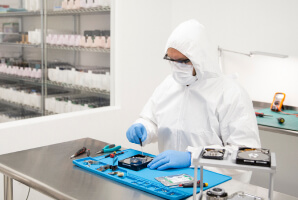
At Secure Data Recovery, we understand the stress and urgency that comes with water-damaged devices. Since 2007, our skilled engineers have recovered millions of files from thousands of iPhones, spanning all models and iOS versions.
As an Apple Authorized Service Provider (AASP), our specialists have extensive experience and knowledge of all hardware and software. This expertise allows us to deliver better iPhone data recovery results with quicker turnaround times than other providers. Our No Data, No Recovery Fee guarantee reflects that commitment. You get your data back, or pay nothing.
Contact us at 800-388-1266 for a free diagnostic and no-obligation quote.

Zane Kennedy

Zane brings a wealth of knowledge and insight to his role as a content writer at SecureData. With a focus on the latest news, strategies, and innovations in file repair technology and secure data storage, Zane aims to provide articles that are a definitive source for anyone looking to stay informed in this rapidly evolving field. Whether exploring the latest advancements in data recovery techniques or offering insights into effective data management strategies, his writing is an essential resource for professionals and enthusiasts alike.






.png)
